
Download PS3 firmware from the correct source
PlayStation publishes the PS3 system software and update instructions on its support site. The button above goes to that first-party page rather than an unlabeled mirror. On the destination page, read the current version notice and license terms before selecting the PC update option.
Version 4.93 was released on March 18, 2026. The official page states that a PS3 hard drive or removable storage device needs at least 200 MB of free space for an update. FirmwareDownload.wiki does not rename the package or claim ownership of the file.

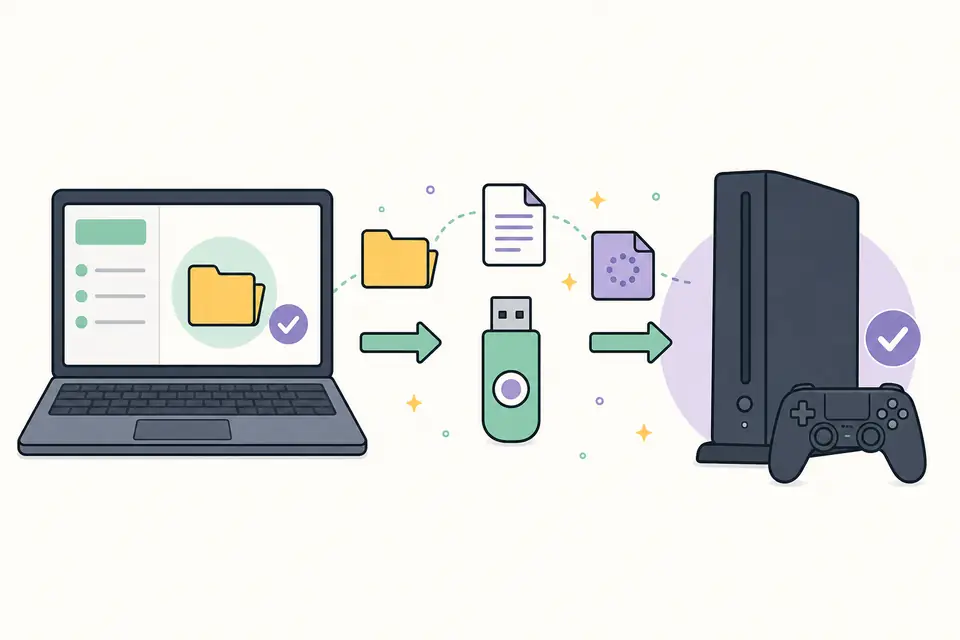
How to prepare a PS3 USB firmware update
If the console says no applicable update data was found, first check the filename and folder capitalization. A file saved as PS3UPDAT.PUP.PUP or placed one folder too deep will not be detected.
- 1
Use a USB storage device formatted as FAT32 and create a folder named PS3 at its root.
- 2
Inside PS3, create another folder named UPDATE. Both folder names should be uppercase.
- 3
Download the official update file and save it as PS3/UPDATE/PS3UPDAT.PUP.
- 4
Connect the USB device to the PS3, open Settings, choose System Update, then choose Update via Storage Media.
- 5
Confirm the detected version and keep the console connected to stable power until the update is complete.
Normal update or Safe Mode update?
Use the normal Settings menu when the PS3 starts correctly. Safe Mode is intended for recovery situations, such as a console that cannot complete a normal update or cannot reach the standard menu. Safe Mode operations can affect local settings or data depending on the option selected, so back up important saves before troubleshooting.
Do not turn off the console, disconnect power or remove the storage device while the update is being written. If the current installation is modified, consult documentation for that exact configuration before applying an official update because compatibility with third-party modifications is outside the scope of this page.
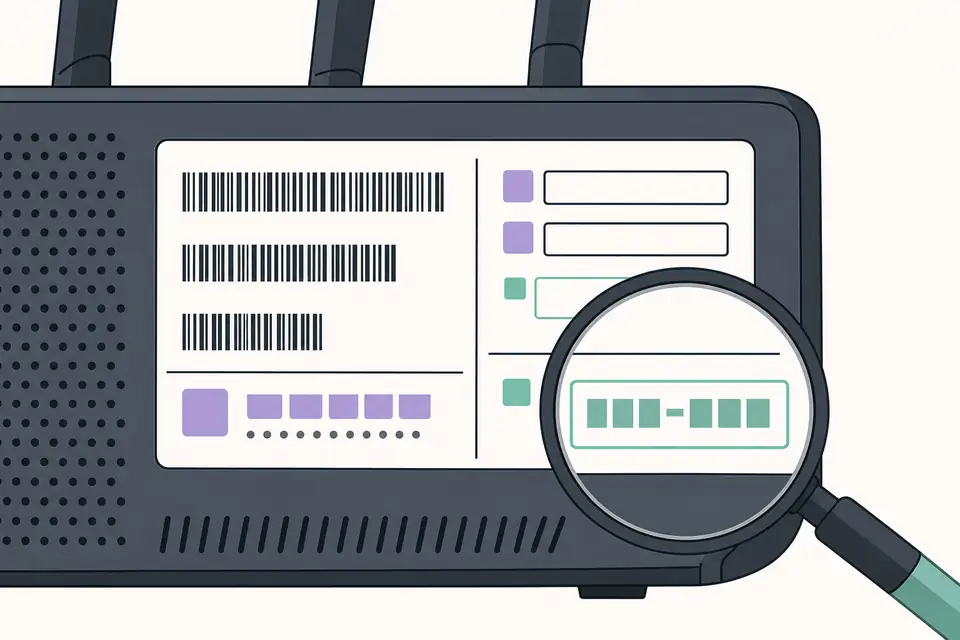
PS3 firmware compatibility checklist
- The package must be official PlayStation 3 system software, not a PS4 or emulator file.
- The USB path must be PS3/UPDATE/PS3UPDAT.PUP.
- The downloaded file should finish completely before it is moved to USB storage.
- The console and storage device should have enough free space for the update process.
- Use the version shown on PlayStation Support if it is newer than the version recorded here.
Verify a PS3 firmware download before installation
A PS3 firmware download should be checked at the destination, not judged only by a search-result title. The official PS3 firmware download source is the PlayStation support domain, where Sony displays the current system software version and its installation terms. Confirm that the address still belongs to PlayStation, that the page identifies PlayStation 3, and that the download is the standard system update. This check matters because third-party archives can reuse the correct filename while containing an old, modified or incomplete package.
After the PS3 firmware download finishes, compare the browser file size with any value displayed by PlayStation and make sure the transfer completed without an error. Keep the original PS3UPDAT.PUP name. Do not open, extract or rename the PUP package. If security software interrupted the transfer, delete the partial copy and start a fresh PS3 firmware download from the official source instead of trying to repair the file. These steps create a clear source record if the console later reports corrupted update data.
Match the update method to the console condition
Choose the least disruptive method that fits the console. A working PS3 connected to the internet can normally update through Settings. A USB-based PS3 firmware download is useful for an offline console or when the network update repeatedly fails. Safe Mode is a recovery path, not a faster routine. Before entering it, disconnect unnecessary accessories, charge or cable the controller, and back up saves that are not already protected elsewhere.
If the installer finds the file but refuses it, write down the complete error code and the version shown on screen. Recheck free space, USB formatting, folder capitalization and whether the console already has the same or a newer version. Do not cycle through unrelated packages. Return to the official PS3 firmware download source, create a clean USB folder structure, and test one freshly downloaded file. A consistent process makes it easier to separate a storage problem from a system-software problem.
Keep a useful PS3 update record
Record the update version, download date, source URL and installation result. That small log is useful when several consoles are maintained or when a later recovery request refers to an older file. The current PS3 firmware download link can change after Sony publishes a new release, so the version displayed on PlayStation always takes priority over a cached filename or an old tutorial.
Report a stale link if the button no longer reaches PlayStation support, the destination describes another product, or the recorded version conflicts with the official page. Include the page URL and the difference you observed, but never send firmware files by email. FirmwareDownload.wiki can correct a listing; only the platform owner can publish an authoritative PS3 firmware download.
After installation, open System Information and confirm the expected version. Test network sign-in and one familiar application before declaring the maintenance complete. If the system behaves unexpectedly, preserve the error details and avoid repeating the update from several different files. One verified source, one clean storage device and one documented result provide a much clearer recovery trail.
PS3 Firmware Download and System Software Update FAQ
What is the latest PS3 firmware?
The official PlayStation support page lists PS3 system software version 4.93, released March 18, 2026. The source was checked on July 20, 2026.
What should the PS3 update file be called?
The official file must be named PS3UPDAT.PUP and stored at PS3/UPDATE/PS3UPDAT.PUP on the USB device.
Can RPCS3 use the official PS3 firmware?
RPCS3 can install official PS3 system software obtained from PlayStation. Follow the emulator's current documentation and do not use modified firmware packages.
Why does my PS3 say no applicable update data?
Common causes include the wrong USB format, incorrect folder capitalization, a renamed file, an incomplete download or a package that is not newer or compatible with the current system state.