Choose the normal PS4 update file
PlayStation places two PS4 system software downloads on the same support page: a normal console update and a complete reinstallation file. The normal update is the correct choice for routine offline updates and many Safe Mode update attempts when the installed system is still intact.
The official destination should identify the current release at download time. We do not print an unverified version number when the first-party page can change independently. The checked date above tells you when the source link and page purpose were last reviewed.
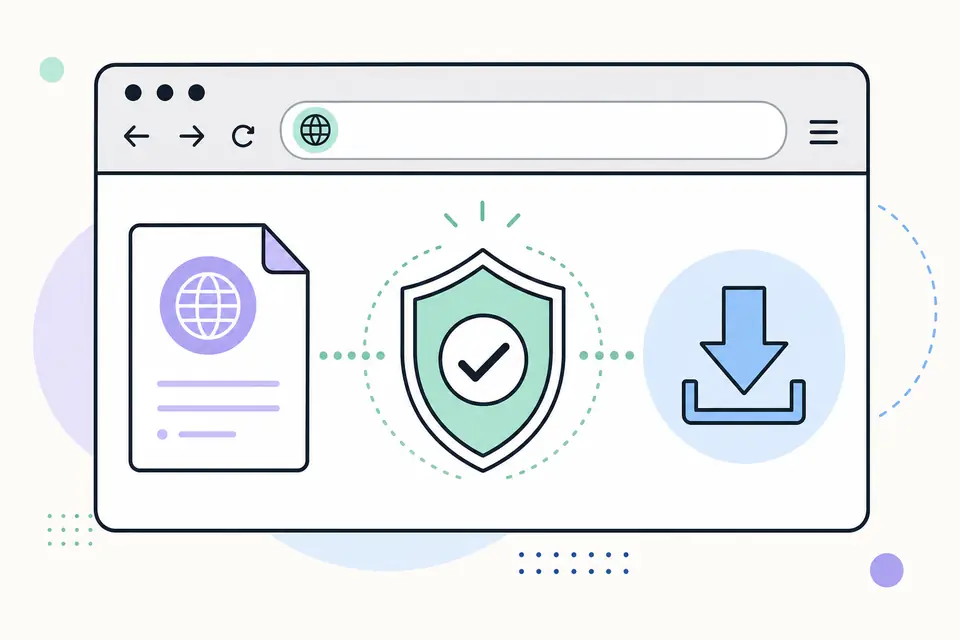
Update PS4 system software from USB
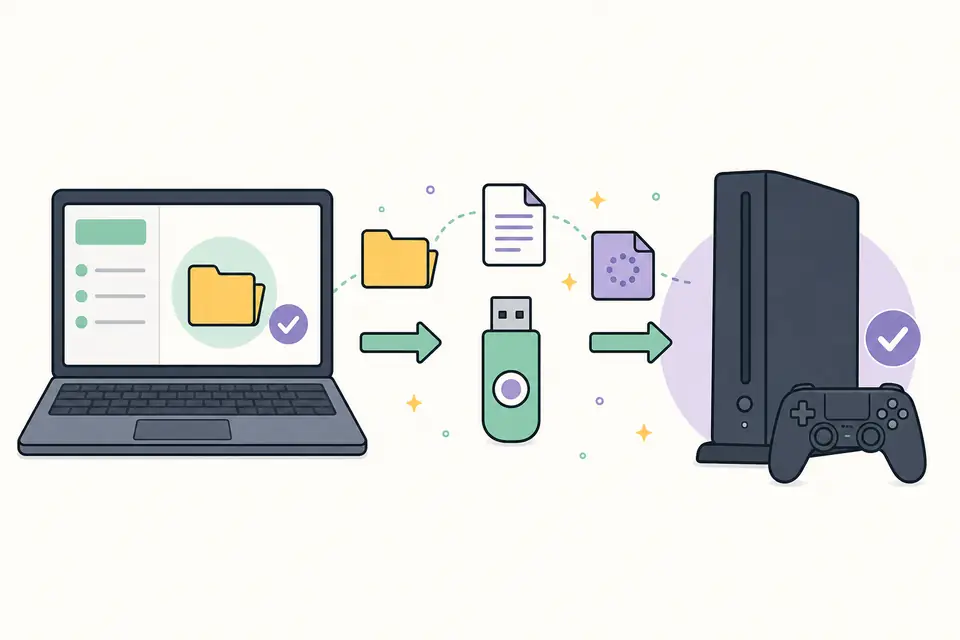
- 1
Format a USB storage device as FAT32 or exFAT.
- 2
Create a folder named PS4 at the root, then create UPDATE inside it.
- 3
Download the PS4 console update file and save it as PS4/UPDATE/PS4UPDATE.PUP.
- 4
Start the PS4 normally and choose Settings, System Software Update, or enter Safe Mode and choose Update System Software when troubleshooting.
- 5
Select Update from USB Storage Device and follow the on-screen instructions without disconnecting power.
When you need the PS4 reinstallation file instead
Use the reinstallation file only when PlayStation instructions specifically call for a complete system software reinstall, such as after replacing the internal drive or when recovery cannot repair the installed software. It is a different and larger package than the routine update.
Reinstallation initializes the PS4 and deletes local user data. Visit the dedicated reinstallation page before choosing that file so the destructive effect is clear. A normal update file will not complete a full drive replacement, while a reinstallation file is excessive for an ordinary version update.
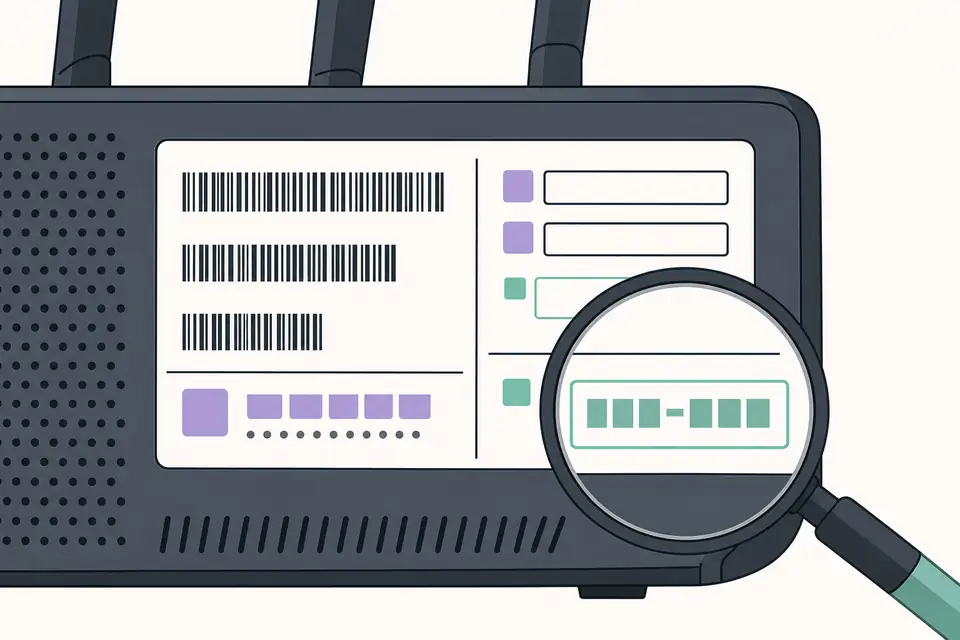
PS4 update troubleshooting checklist
- Confirm the file is the console update file, not the reinstallation file.
- Use uppercase PS4 and UPDATE folder names and the exact PS4UPDATE.PUP filename.
- Download the file again from PlayStation if the package is reported as corrupted.
- Connect the controller with a USB cable when using Safe Mode.
- Back up data before recovery operations and never interrupt power during installation.
Verify the official PS4 firmware update download
An official PS4 firmware update download comes from PlayStation Support and is labeled as the console update file. Read that label before downloading because the same support page also offers a full reinstallation package. The normal PS4 firmware update preserves the installed system in ordinary use, while reinstallation initializes the console. File names alone cannot distinguish the two because both may be delivered as PS4UPDATE.PUP.
Open the official PS4 firmware update download with a current browser, allow the transfer to finish, and keep the original filename. Avoid download managers that rename the package or wrap it in an executable. If the transfer stops or the browser reports a network error, remove the partial file and download it again. A clean source and complete transfer are more useful than repeatedly presenting the console with the same damaged copy.
Choose Settings or Safe Mode for the update
Use Settings when the PS4 reaches its normal home screen and only needs the current system release. Use Safe Mode when PlayStation troubleshooting specifically recommends it or when the normal process cannot start. A USB PS4 firmware update is appropriate when the console cannot download online, but Safe Mode does not turn the normal update file into a reinstallation file. Select the menu option carefully and read its data warning before confirming.
For USB installation, verify FAT32 or exFAT formatting, the uppercase PS4/UPDATE path and the exact PS4UPDATE.PUP filename. Connect the controller with a data-capable USB cable in Safe Mode. If the console says the update file cannot be used, return to the official PS4 firmware update download, confirm that you selected the smaller console update, and recreate the folders on dependable storage. Do not interrupt power while the system verifies or writes the update.
Record and report PS4 update problems
Before troubleshooting, record the displayed error code, current system version, selected menu option and whether the package was the normal update or full reinstall. This prevents an unnecessary destructive recovery. The official PS4 firmware update download page may change its current version after this guide is checked, so use PlayStation's live version and instructions as the final authority.
Report the listing if its button stops reaching PlayStation, if the destination removes the console update section, or if a stated fact no longer matches the official page. Include the source URL and observation, not a copied firmware package. FirmwareDownload.wiki verifies where the PS4 firmware update is published and explains the choice; PlayStation controls the software, licensing and release record.
When the installation succeeds, open Settings and System Information to verify the resulting version. Test sign-in, storage recognition and one installed game before removing the USB device from your maintenance kit. If the console immediately requests another update, return to PlayStation and check whether a newer release appeared during preparation rather than assuming the completed update failed.
Keep normal update media clearly separated from full reinstallation media. Both can share the PS4UPDATE.PUP name, so a labeled folder outside the USB drive should record the package type, source URL and download date. Reformat or erase temporary USB media after recovery work when retaining the package is unnecessary. This prevents a destructive file from being selected during a later routine update. Firmware version details belong in that label. Confirm the firmware source, firmware package type and firmware release before reuse.
PS4 Firmware Update Download FAQ
Where is the official PS4 update download?
PlayStation publishes the normal update and reinstallation downloads on its PS4 system software support page, linked above.
What is the PS4 USB update path?
Save the normal update as PS4/UPDATE/PS4UPDATE.PUP on a FAT32 or exFAT USB storage device.
Does a normal PS4 update delete games and saves?
A routine system software update is intended to preserve existing data. Recovery choices and full reinstallation can delete data, so read the selected option carefully.
Why will my PS4 not recognize the update file?
Check the folder names, filename, USB format and whether you downloaded the correct update type. An incomplete file or extra filename extension can also prevent detection.