Find the exact TP-Link model before downloading
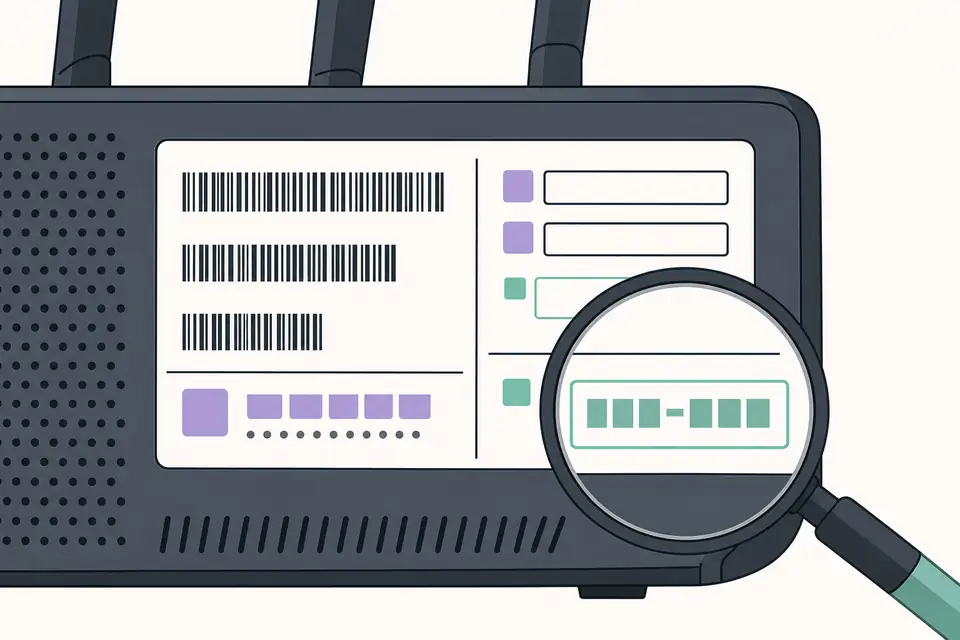
The official TP-Link Download Center is the safest starting point for a TP-Link firmware download. Read the label on the router, access point, Deco unit or switch and record the complete model name plus the hardware version shown near Ver, V or H/W before selecting a result.
Use the country-specific TP-Link site that matches the product. Regulatory features, wireless settings and available releases can differ by market. A download shown on another region's page is not automatically compatible with a device purchased locally.
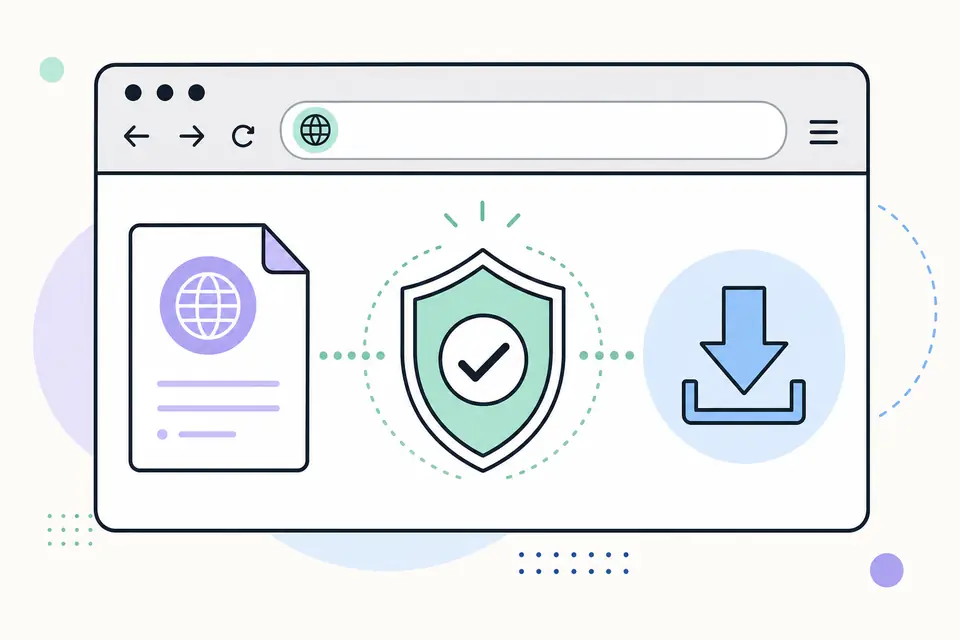
How to use the TP-Link firmware download center
- 1
Read the label and write down the exact product model, hardware version and purchase region.
- 2
Open the official Download Center and search for the complete model name.
- 3
Choose the matching hardware version before opening the Firmware section.
- 4
Read the release notes, published date, upgrade notes and any warning about intermediate versions.
- 5
Download the package, extract it only if TP-Link instructions say to, and follow the model-specific web interface or app steps.
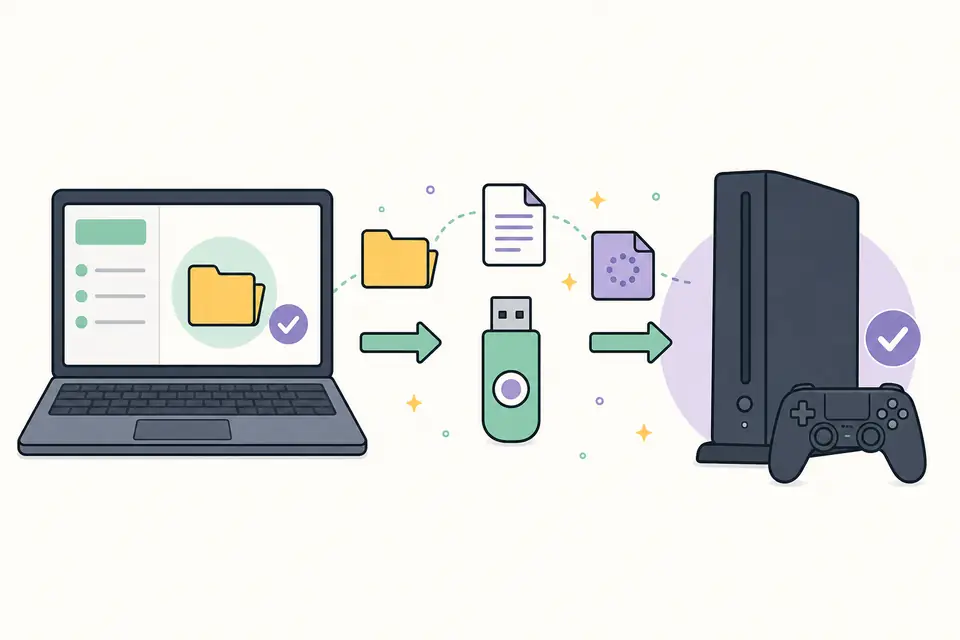
Back up settings and keep the router powered
Export a configuration backup when the current firmware offers that option, but do not assume a backup from an old major release can always be restored to a new one. Record internet credentials, VLAN settings, VPN configuration and custom DNS values separately.
Use a wired connection for web-interface upgrades when TP-Link recommends it. Do not update through an unstable wireless link, turn off the router, close the browser during an active write or install firmware while power is unreliable. Mesh systems may require a specific app or controller workflow.
Why TP-Link firmware downloads fail
- The selected firmware belongs to another hardware version or region.
- The ZIP archive was uploaded instead of the extracted firmware file, or the reverse.
- The router requires an intermediate release before the newest version.
- An ISP-customized device accepts firmware only from the provider.
- The browser session or wireless connection was interrupted during upload.
Use the official TP-Link firmware download center
Begin every TP-Link firmware download at the regional TP-Link support site. Search the exact model printed on the device label, then choose its hardware version before viewing files. The official TP-Link firmware download center separates products that share a retail name but use different internal boards. A package for Archer C7 V5, for example, must not be assumed compatible with V2 simply because both devices say Archer C7.
Confirm the selected country or region as well. Available features, radio rules and release sequences can differ by market. Read the release notes, supported hardware version and upgrade instructions on the file detail page. If the official TP-Link firmware download center warns that a release cannot be downgraded or requires an intermediate version, treat that instruction as part of compatibility rather than optional commentary.
Prepare a router update with a recovery plan
Export the current configuration when the administration interface supports it, but do not assume a backup from one firmware branch can always be restored to another. Record WAN settings and custom network values separately. Perform the update from a wired computer where possible, stop heavy network traffic, and connect the router to stable power. Extract the downloaded archive only when TP-Link's instructions say the actual firmware binary is inside it.
Open the router administration page, verify the model and hardware version shown there, and compare them again with the TP-Link firmware download details. Upload only the designated firmware file. Do not close the browser, unplug Ethernet or reboot manually while the device writes and restarts. Afterward, verify the installed version and test internet, wireless and local management access before restoring optional settings.
Resolve model, region and rollback conflicts
Stop if the device label, administration page and download listing disagree. Photograph or record the complete label, including suffixes such as US, EU and hardware revisions. Return to the official TP-Link firmware download center and search that exact identity. Do not choose the nearest-looking model or remove a region suffix to obtain a different release. Mesh units and ISP-customized devices may require instructions from their provider rather than the general retail page.
When an update fails, preserve the error message and current status lights before power cycling. Use only the recovery procedure documented for that exact model. Report a stale link if our destination no longer reaches the right regional support area. The safest TP-Link firmware download is the one whose model, revision, region and release notes all agree with the device being updated.
After the router returns, confirm its firmware version, WAN address, wireless names and security mode. Check that administration is available only where intended and reinstall no configuration backup until basic connectivity works. If a release changes settings or resets defaults, follow its notes rather than assuming the flash failed. Recording the before-and-after versions makes later support considerably easier. Test one wired client and one wireless client, then save the final configuration record for future reference.
TP-Link Download Center: Firmware by Model and Hardware Version FAQ
Where is the official TP-Link firmware download?
Use the TP-Link Download Center for the region where the device was sold, then select the exact model and hardware version.
How do I find my TP-Link hardware version?
Check the product label for text such as Ver: 2.0, V2 or H/W Ver. Do not infer the version from the retail name alone.
Can I install US firmware on an EU TP-Link router?
Do not cross-install regional firmware unless TP-Link documentation for the exact model explicitly permits it. Wireless regulations and package compatibility can differ.
Should I update TP-Link firmware over Wi-Fi?
Use the update method specified by TP-Link. For web-interface updates, a wired connection is generally more stable when the model supports it.
What is the TP-Link Download Center URL?
Use the official TP-Link Download Center at tp-link.com/support/download/ or the regional support site that matches where the device was sold. Then choose the exact model and hardware version before downloading firmware.