Why Ryujinx firmware is separate from the emulator
An emulator application can be distributed as open-source software while the console operating system, encryption keys and game content remain controlled by the platform owner. Installing Ryujinx does not grant rights to download Nintendo system files from an unrelated website.
Search results that bundle an emulator, firmware and keys together often hide the origin and version of each component. That makes legal status, malware risk and compatibility difficult to evaluate. Keep the emulator application, your own dumped system material and your game backups as separate, traceable sources.
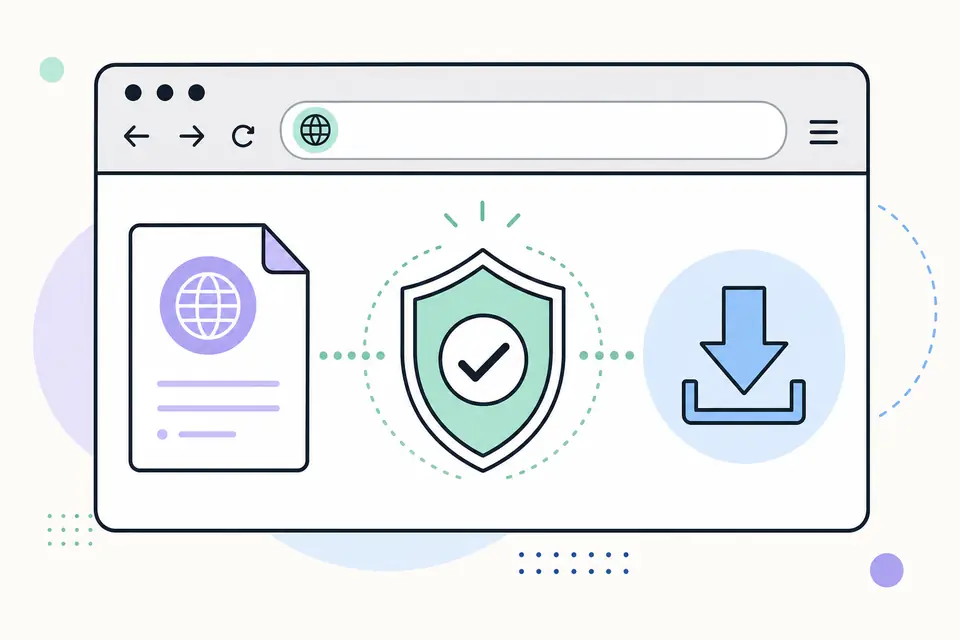
A responsible Ryujinx setup workflow
- 1
Use a maintained Ryujinx build from a source you can identify and review its current setup documentation.
- 2
Confirm that you own the Nintendo Switch console and content involved in your local setup.
- 3
Use lawful, device-owner documentation to export the required system material from your own hardware.
- 4
Keep firmware and key versions together and store backups privately rather than sharing them.
- 5
Use Ryujinx's Install Firmware command or current equivalent, then confirm the detected system version in the application settings.
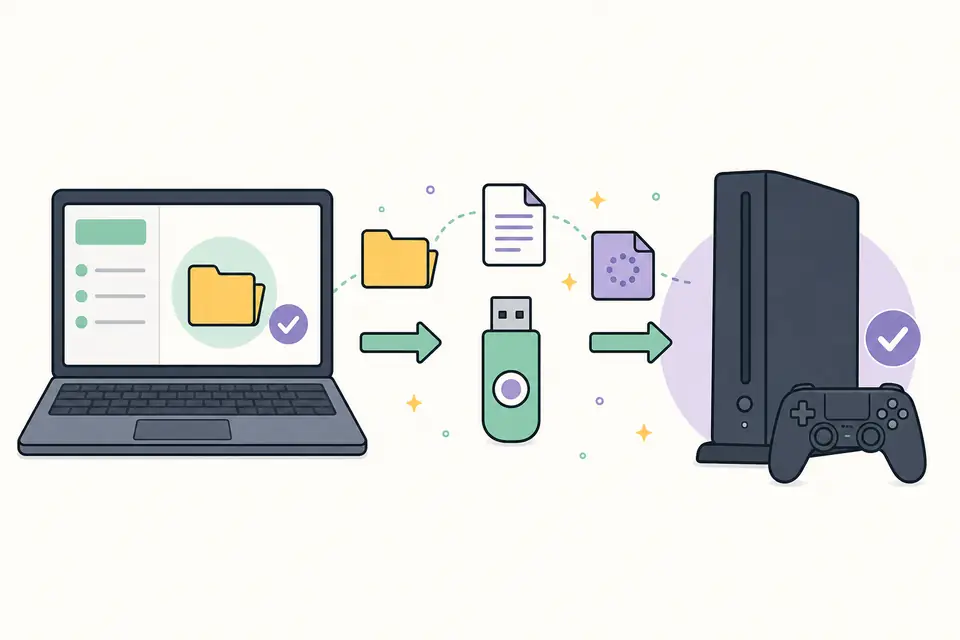
Firmware, prod.keys and title.keys are different
Firmware contains console system software. prod.keys contains cryptographic keys used for system-level content, while title.keys can relate to specific content. A firmware package does not replace missing keys, and an old key set may not work with newer system content.
Do not solve a version mismatch by downloading random packs. Identify which component the error names, verify the emulator build and compare the versions of material exported from your own device.
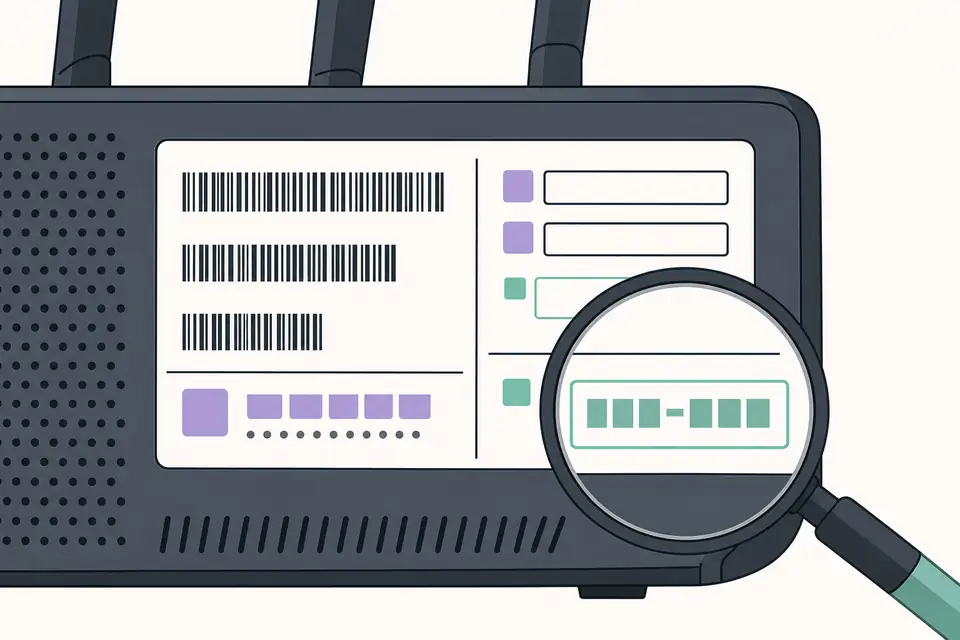
Common Ryujinx firmware errors
- Firmware not found: the package was not installed through the emulator's supported command or folder.
- Missing keys: prod.keys is absent, stored in the wrong user directory or unreadable.
- Outdated keys: the firmware or content expects keys newer than the local export.
- Invalid package: the archive is incomplete, mislabeled or not a genuine system export.
- Build mismatch: setup steps belong to another Ryujinx fork or an older interface.
Evaluate a Ryujinx download source before running it
A trustworthy emulator source identifies the project, publishes code or release history, documents supported operating systems and does not bundle console firmware, keys or commercial games. Be cautious when a page uses a familiar project name but provides only a password-protected archive, shortened links or an installer that requests unrelated permissions.
Scan downloaded application files with current local security tools, keep the operating system updated and avoid running an emulator as administrator unless a documented task genuinely requires it. A polished download page is not evidence that the file belongs to the original project.
- Prefer a documented project repository or release channel over a repack site.
- Check whether file names, release dates and hashes are published by the same project source.
- Reject bundles that advertise included firmware, keys or games as a convenience feature.
- Keep device exports and emulator application files in separate backup locations.
Keep firmware and keys organized without sharing them
Record the date and system version when you export material from your own console. Use private folder names that distinguish firmware, keys and user data, and keep a backup before replacing a working configuration. This makes it easier to return to the last known-good setup when a newer emulator build changes requirements.
Do not upload these files to public issue trackers, chat channels or screenshots. Error reports can normally include the emulator version, operating system, visible error message and game title without attaching keys or system archives. Remove paths or account names from logs when they reveal personal information.
Troubleshoot version mismatches methodically
Changing several components at once makes the cause harder to identify. Preserve the working application settings, update one source-controlled component at a time and keep enough notes to reverse the change.
- 1
Record the exact Ryujinx build or fork and the complete error message.
- 2
Check whether the error names firmware, prod.keys, title keys, content metadata or a game update.
- 3
Confirm the emulator is reading the intended user directory rather than an older portable or profile folder.
- 4
Compare the firmware and key exports from your own device and replace only the component proven to be outdated.
- 5
Restart the emulator and test with the same configuration before changing graphics or performance settings.
Use Nintendo's current version as context, not a download
Nintendo's official update history is useful for confirming the current retail console version. As of the source check on July 20, 2026, Nintendo lists Switch system version 22.5.0, released June 15, 2026.
That page does not provide an emulator firmware ZIP. It documents the console's online update process. FirmwareDownload.wiki links to it for version context and does not convert the official update history into an unauthorized file download.
Create a lawful Ryujinx firmware setup record
A responsible Ryujinx firmware setup starts with a Nintendo Switch you own and a record of where each required component came from. Firmware and console keys serve different purposes and must not be substituted for each other. Keep personal dumps private, label them with the source console and version, and follow current project documentation because menus and supported versions can change. This Ryujinx firmware guide does not provide copyrighted packages or decryption keys.
Before installation, verify that the firmware dump completed without errors and that the emulator build supports the intended version. Store a backup of personal data outside the active emulator directory, then change one component at a time. If a Ryujinx firmware setup fails, record the emulator version, firmware version and exact message before replacing files. That evidence is more useful than collecting unrelated archives whose provenance cannot be checked.
Troubleshoot Ryujinx firmware without unsafe downloads
Missing keys, an incomplete personal dump, a mismatched emulator build or an incorrect installation location can produce similar symptoms. Consult the emulator's current documentation and logs, confirm each prerequisite separately, and reinstall only the component identified as invalid. Do not publish keys or request copyrighted files in a support report.
Treat pages promising a one-click Ryujinx firmware download with caution, especially when they require an executable, password or survey. FirmwareDownload.wiki provides legal setup context rather than an archive. When documentation or project ownership changes, use the currently maintained official project source. Report a stale link on this guide so readers are not directed toward abandoned software or obsolete Ryujinx firmware instructions.
Ryujinx Firmware: Legal Setup and Installation Guide FAQ
Where can I download Ryujinx firmware?
FirmwareDownload.wiki does not provide a firmware archive. Obtain required system material lawfully from Nintendo Switch hardware you own and follow the documentation for your emulator build.
Are prod.keys included with Ryujinx?
No. Emulator distributions do not normally include Nintendo encryption keys. These are separate system materials.
Why does Ryujinx say my keys are outdated?
The installed firmware or content may require a newer key set than the one exported from your device. Verify both versions and the correct user-folder location.
Can I use Nintendo's online update page to download a firmware ZIP?
No. Nintendo's support page provides console update instructions and version history, not a public emulator firmware archive.
Is Ryujinx firmware the same as a game ROM?
No. Firmware is console system software. Games are separate copyrighted content and must also come from lawful sources.