What PS Vita firmware 3.74 is
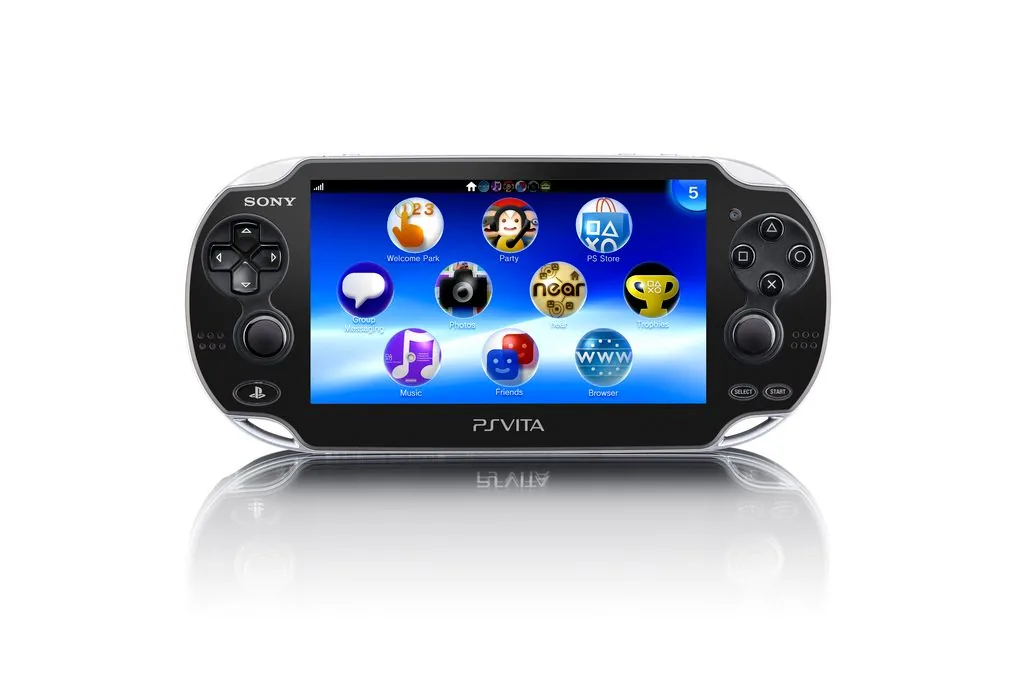
Firmware 3.74 is Sony's current public system software for the PlayStation Vita family. It updates the operating environment that controls sign-in, system settings, network features, application compatibility and security behavior. It is not a game, emulator add-on or optional theme package. The version shown in Settings should match the system software installed on the handheld or PlayStation TV itself.
The official support page still identifies 3.74 as the latest release. That makes version 3.74 the correct reference for an ordinary stock system in July 2026, but it does not mean every console must be updated immediately. A device used offline may continue to work on an older version, while PlayStation Network access or a specific application may require the current release.
- Use Settings > System > System Information to check the installed version before downloading anything.
- Treat PSVUPDAT.PUP as a filename, not proof that a file came from PlayStation.
- Keep the console connected to power and do not interrupt an update once installation begins.
Verified version, release date and official download path
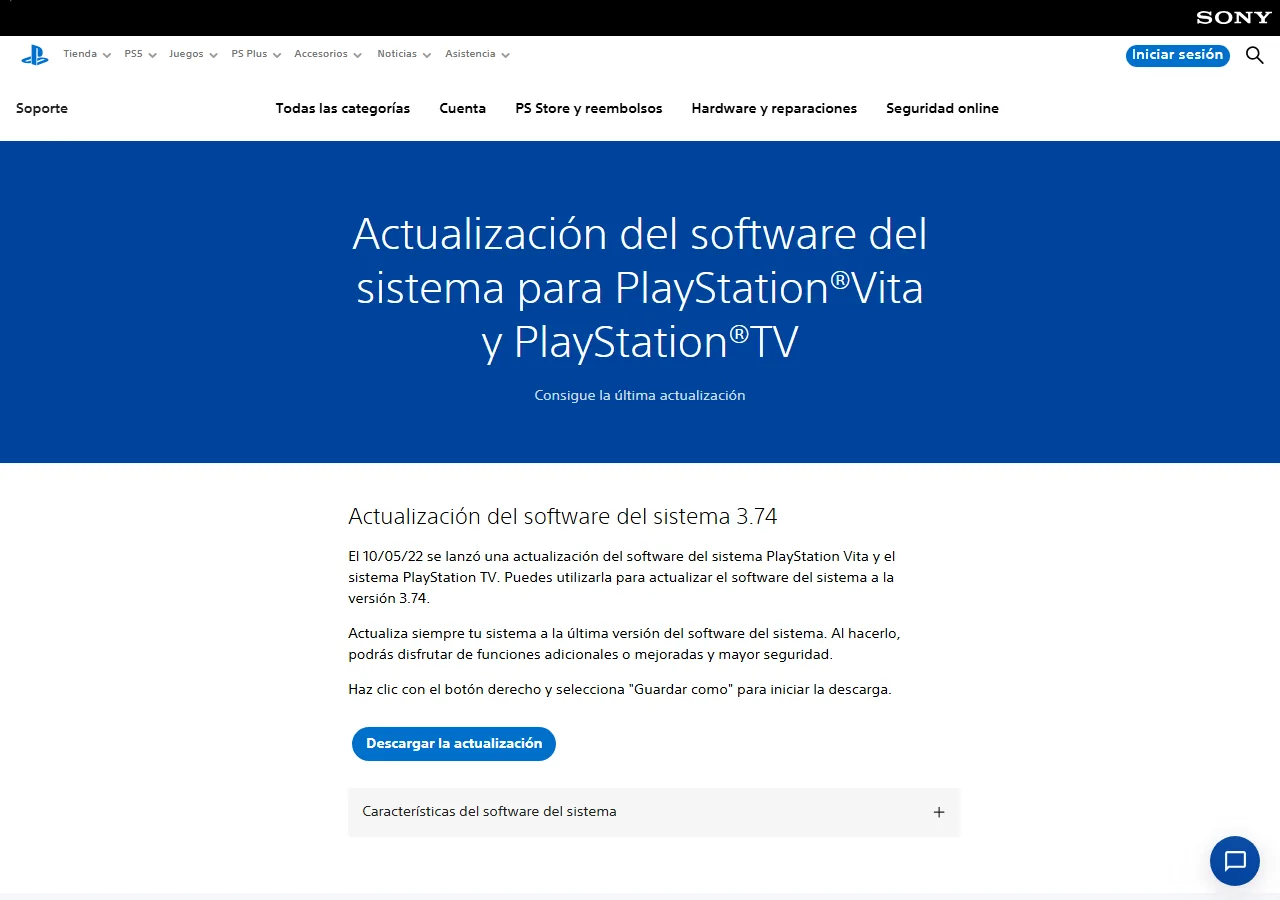
PlayStation's localized support pages list system software version 3.74 and state that it was released on May 10, 2022. The page provides the update agreement, feature notes and methods for updating through Wi-Fi, a PS3 system or a computer. The official package response is 133,834,240 bytes, which is about 127.6 MiB, and begins with the expected SCEUF package signature.
Our primary button opens the official PlayStation support page instead of linking straight to the legacy CDN file. The file URL returned HTTP 200 during verification, but its host presented a certificate whose hostname did not match. A direct CTA that can produce a browser security warning is not a dependable user path, so the official page is the safer and more transparent fallback.
- Verified source: PlayStation Support, not a mirror or emulator download site.
- Verified version: 3.74 for PS Vita and PlayStation TV.
- Verified package metadata: PSVUPDAT.PUP, 133,834,240 bytes.
- Download action: open the official page and follow its current button or instructions.
Choose Wi-Fi, a computer or another supported update route
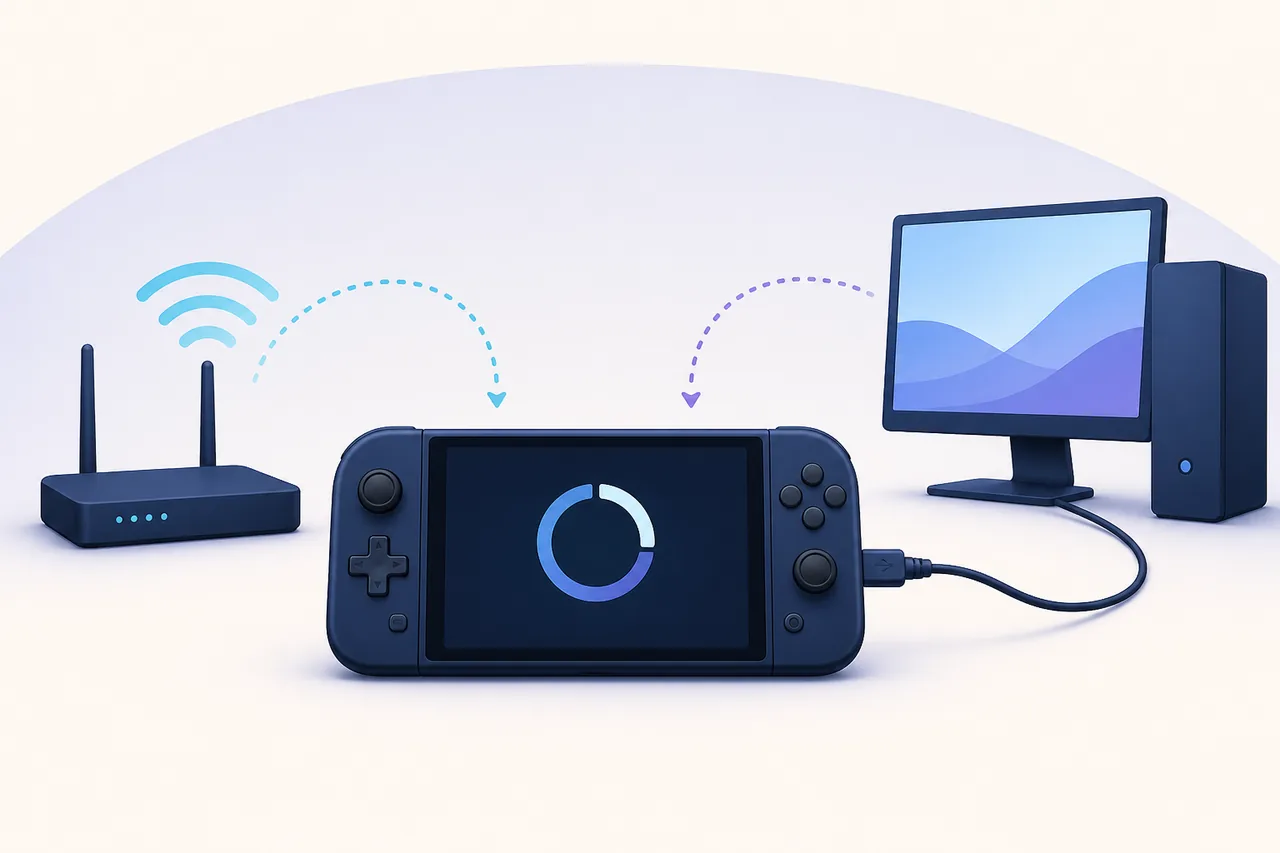
For most working handhelds, updating directly over Wi-Fi is the simplest route. Open Settings, choose System Update, select Update Using Wi-Fi and follow the prompts. The console must have a charged battery, a stable connection and enough time to finish without being powered off. If the Vita cannot connect reliably, use a supported computer-assisted method and follow the current instructions on the official page.
Older documentation also describes updating through a PS3 system. Availability can depend on the software and account state of the other device, so do not assume a method shown in an old video will still work exactly the same way. Start with the official support page, then use the route visible on your system.
- 1
Check the current version in Settings > System > System Information and confirm that an update is actually needed.
- 2
Back up irreplaceable saves or content using a method still available to your system and account.
- 3
Connect the PS Vita to power and use a stable network or supported computer connection.
- 4
Open System Update, choose the appropriate method and read every on-screen warning before continuing.
- 5
Leave the console powered and connected until it restarts and displays the completed version.
How to check the installed PS Vita firmware version
Open Settings from the home screen, select System, and then select System Information. The System Software field shows the installed version. Record that value before troubleshooting. A version number can explain why PlayStation Network sign-in, a game update or a support instruction behaves differently from a guide written for 3.74.
If Settings will not open or the console stops during startup, do not repeatedly force update files onto the device. Use Safe Mode only when the official recovery instructions call for it. Repeated power interruption, a failing memory device or an unstable cable can turn a recoverable software problem into a harder hardware diagnosis.
- 3.74 already installed: no firmware download is needed solely to obtain the same version.
- Older official version installed: use the official update workflow if network or application access requires it.
- Version cannot be read: troubleshoot power, storage and startup behavior before choosing an update package.
PS Vita update troubleshooting without unsafe downloads
If the update cannot start, first check power, free storage, date and time, Wi-Fi reliability and whether PlayStation services are reachable. Restart the console and network equipment before changing files. When using a computer, use a known-good data cable rather than a charge-only cable, and confirm that the computer recognizes the Vita before beginning the update process.
An error code is more useful than a random replacement package. Write down the complete code and the step where it appears, then compare it with PlayStation support information. Avoid videos or posts that immediately recommend disabling checks, replacing certificates or downloading a prebuilt firmware bundle. Those steps target modified systems or emulator workflows and may not match a stock console.
- Update does not appear: verify the installed version and refresh the network connection.
- Download stops: try another stable network and keep the console close to the access point.
- Computer does not detect Vita: test another data-capable USB cable and USB port.
- Console cannot boot normally: follow official recovery guidance before using any third-party package.
Vita3K, font packages and firmware archive results
Search results for PS Vita firmware often mix three different needs: updating a real PS Vita, installing system components for the Vita3K emulator, and looking for a separate font package. This page serves the first need. A real console should follow PlayStation's official system update instructions. Emulator documentation may describe importing firmware or fonts, but that does not make an unofficial archive an authorized PlayStation source.
If your goal is emulation, read the emulator project's legal and setup documentation and obtain required system files through a method you are entitled to use. We do not mirror console firmware, encryption material or bundled emulator packages. Keeping the real-console update intent separate from emulator setup prevents users from downloading the wrong file or following destructive instructions.
Before you update: practical checklist
A firmware update is usually routine, but it changes the software that starts the device. Preparation matters more than speed. Confirm the model, installed version and official source, preserve important data where possible, and choose a time when the console can remain powered and connected. Do not begin immediately before travel or while the battery is nearly empty.
After the update, return to System Information and confirm that version 3.74 is shown. Test Wi-Fi, sign-in and one familiar application before assuming an unrelated issue was fixed. Firmware can resolve system-level compatibility or security problems, but it will not repair a damaged battery, failing buttons, a bad cable or corrupted removable storage.
- Confirm version and model before opening the official update page.
- Back up content that cannot be replaced.
- Use external power and a stable connection.
- Do not rename, modify or repack an official update file.
- Verify the final version after restart.
PS Vita Firmware 3.74 and Official System Software Update FAQ
What is the latest PS Vita firmware version?
PlayStation lists PS Vita and PlayStation TV system software version 3.74 as the current release. The official page gives May 10, 2022 as its release date; we rechecked the source on July 29, 2026.
Where should I download PS Vita firmware 3.74?
Start at the official PlayStation system software page linked above. We intentionally use the support page rather than a third-party mirror or a legacy direct CDN link that did not pass normal hostname certificate verification in our check.
How do I check PS Vita firmware?
Open Settings, select System, then System Information. Read the System Software value before deciding whether an update is necessary.
Is PS Vita firmware the same as the Vita3K font package?
No. System firmware, emulator setup files and optional font-package searches are different intents. This page covers updating real PS Vita or PlayStation TV hardware through official PlayStation instructions.
Can I downgrade a PS Vita with this update file?
No. The official system software page provides an update path, not a supported downgrade workflow. Do not treat PSVUPDAT.PUP as a universal recovery or downgrade package.