What a Ubiquiti firmware download should match
A Ubiquiti firmware download is not interchangeable across UniFi, airMAX and EdgeMAX. Each family can use different firmware branches, recovery procedures and controller requirements, even when two devices look similar.
Before downloading, record the product name, full model code, hardware revision and management platform. Compare the device label or information page with the model selector on the official Ubiquiti site. The goal is a compatible official source, not simply the newest-looking filename.
- Write down the exact model before opening a download result.
- Check hardware revision, regional notes and supported upgrade paths.
- Confirm whether the device uses UniFi, UISP, a local web interface or another supported tool.
Start with the official Ubiquiti download center
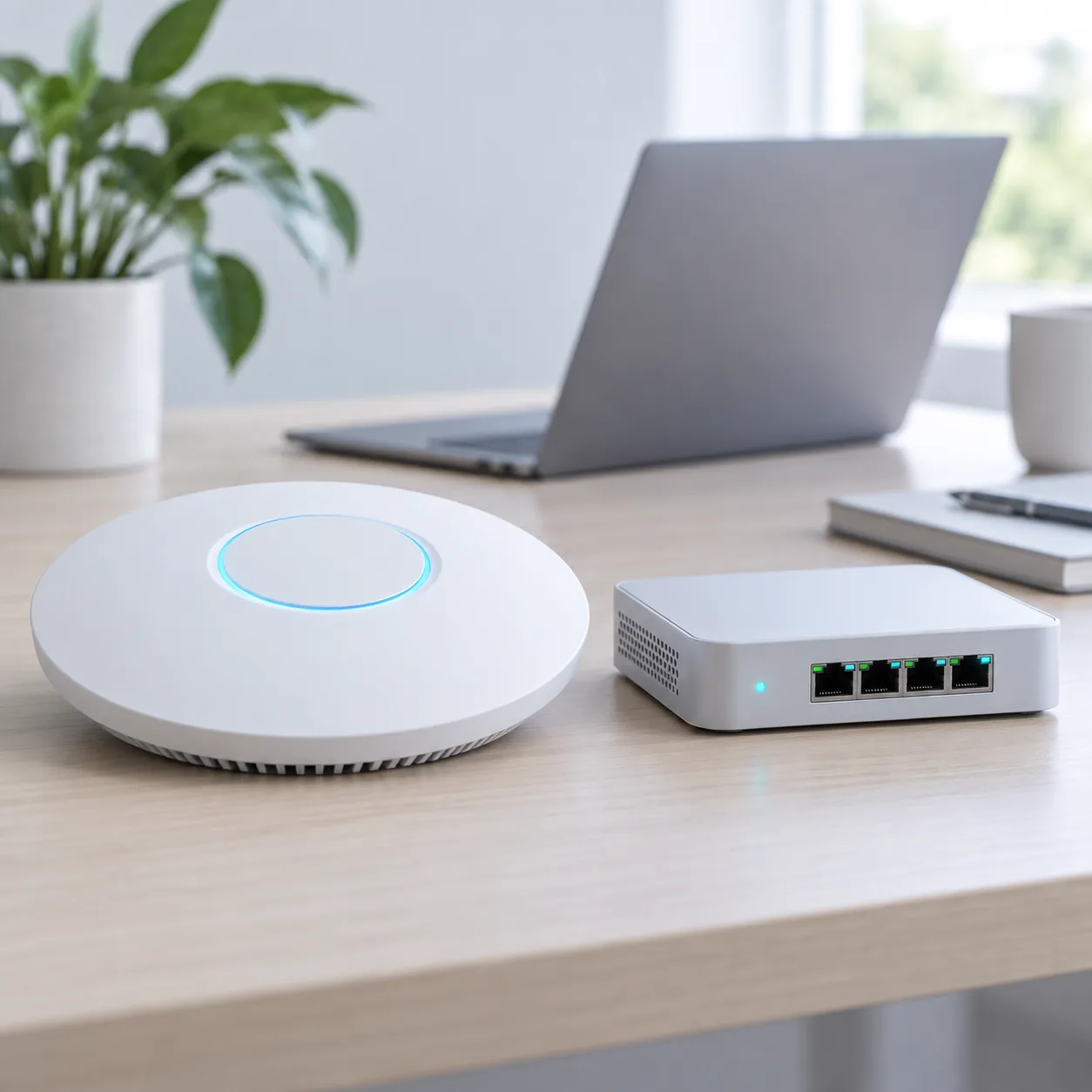
The Ubiquiti download center is the primary destination for firmware packages, documentation and model-specific release information. Select the product family first, then choose the exact device. If a search result points to a mirror or renamed archive, return to the official hub.
Ubiquiti publishes releases by product line, so a current UniFi release does not describe every airMAX radio or EdgeMAX router. Follow the model-specific download button and release notes, and keep the original archive or image unchanged until the vendor explains any required extraction step.
- 1
Open the official Ubiquiti download center and choose the correct product family.
- 2
Search for the complete model name shown on the device or its management page.
- 3
Compare the model, hardware revision and release notes with your installation.
- 4
Download from the official result and use that product's documented update method.
Match UniFi, airMAX and EdgeMAX product lines
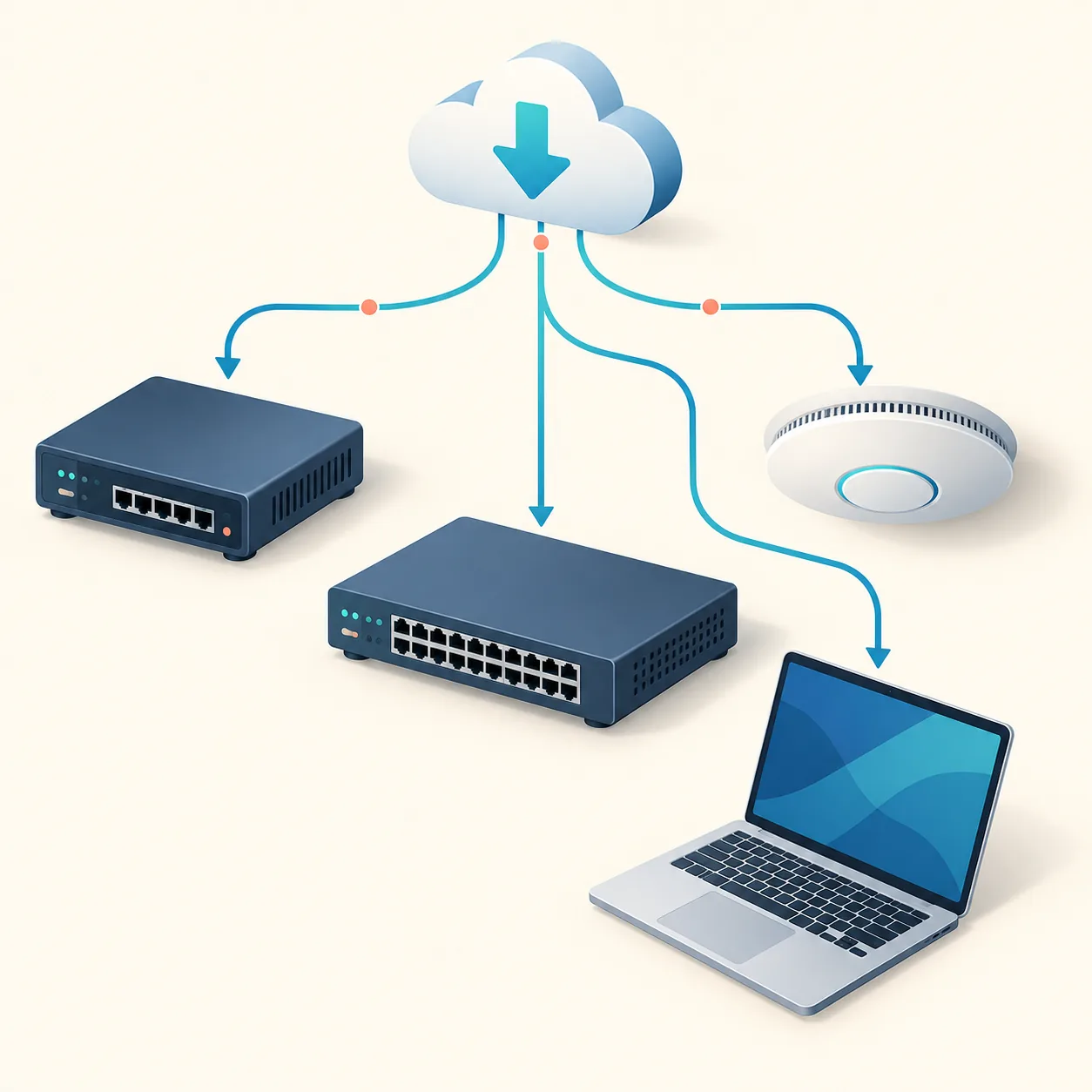
Product-family matching prevents a valid file from being applied to the wrong management ecosystem. UniFi uses its Network workflow, airMAX uses airOS-oriented instructions and EdgeMAX uses EdgeOS guidance; each may require a different image or recovery plan.
Use the table as an orientation aid, not a substitute for the official model page. Follow any controller minimum, intermediate version or recovery limitation in the release notes.
| Product line | Best fit | Caution before update |
|---|---|---|
| UniFi | Access points, switches, gateways and cameras managed in UniFi | Check controller compatibility and adopt the exact device model |
| airMAX | Point-to-point, point-to-multipoint and outdoor radio hardware | Match the radio model, airOS branch and link maintenance window |
| EdgeMAX | EdgeRouter and EdgeOS-managed network devices | Read storage, configuration backup and recovery requirements |
| Other UI products | The product family shown by the official download selector | Do not infer compatibility from a similar chassis or port layout |
How to update a UniFi device safely
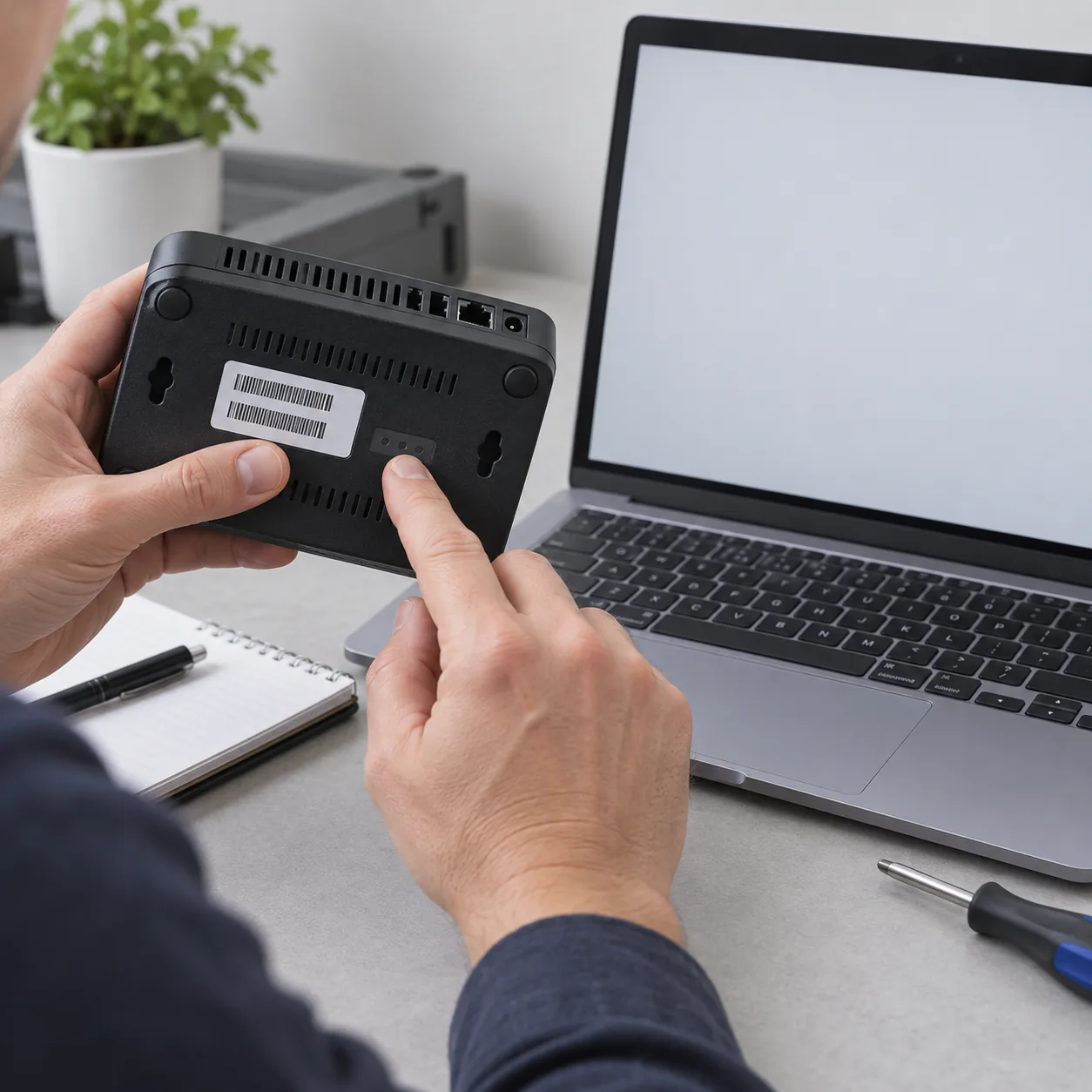
For UniFi equipment, begin in the UniFi Network application or the official device instructions. Confirm the device name, current firmware, controller version and exact hardware before selecting an update. Export important configuration details and schedule the change when a short interruption is acceptable.
Keep controller and device connectivity stable while firmware is written, and resolve any compatibility warning before trying a manual file. After the restart, verify adoption, uplink, wireless service, VLAN behavior and a real client connection.
- 1
Record the device model, current version and controller version.
- 2
Back up the site or export settings according to the current UniFi workflow.
- 3
Read the release notes and confirm the update is intended for the selected model.
- 4
Start the supported update path with stable power and network connectivity.
- 5
Verify adoption, service and the final firmware version after reboot.
airMAX and EdgeMAX need their own update path
airMAX and EdgeMAX have different update assumptions. An airMAX link may lose service while one or both radios reboot; an EdgeMAX router may need a configuration backup, available storage and a particular EdgeOS sequence. A UniFi controller instruction is not universal Ubiquiti guidance.
Identify the exact radio or router, record its current version, read the family-specific official article and use only the documented web, SSH, controller or recovery method. Keep a local recovery path available for equipment that may lose remote access.
- AirMAX: identify both ends of a radio link and plan the outage before updating.
- EdgeMAX: export configuration and check the official storage and recovery notes.
- Never mix UniFi, airOS and EdgeOS files because they share the Ubiquiti name.
Verify the model, file and release notes before installation
A safe Ubiquiti firmware download matches three things: device identity, official product page and documented installation method. Compare the model code and hardware revision with the filename and release notes, including regional, minimum-version or intermediate-release requirements.
Keep the original package, scan it with available security tools and do not repack or rename it unless Ubiquiti says to. If the device identity is uncertain, pause and verify its label, information screen or controller inventory instead of guessing from the enclosure.
- Model code matches the official download result.
- Hardware revision and region match the device label and release notes.
- The package came from the official Ubiquiti destination, not an unverified mirror.
- The update method and minimum-version requirement are understood before installation.
Recovery, rollback and failed-update safety
A failed update does not mean that a random firmware file will repair the device. Record the exact error, model, status light or boot behavior and failed step. Check the official help article before interrupting power or entering recovery mode.
Do not repeatedly power-cycle hardware while it writes flash storage. Test the local connection, use the documented recovery procedure and assume recovery or rollback may erase settings or require a specific image.
- Stop and document the error before downloading another package.
- Keep power stable and avoid repeated forced reboots.
- Use recovery or downgrade only with the exact official model instructions.
Why there is no single latest Ubiquiti firmware version
There is no single latest Ubiquiti firmware version: UniFi, airMAX, EdgeMAX and individual hardware revisions have separate release listings. This page keeps the official download center as the version source instead of hard-coding a number that can become stale.
Before maintenance, open the official model listing, read its release notes and record the model, current version, target version, source URL, checked date and backup location. A specific record is safer than a file saved as latest.bin.
Ubiquiti and UniFi Firmware Downloads FAQ
Where is the official Ubiquiti firmware download?
Start at ui.com/download, choose the product family and exact model, then read the release notes and model-specific update article before installing a package.
What is the latest Ubiquiti firmware version?
There is no single latest version for every Ubiquiti device. Each product family and model has its own release listing, so use the official download center for the device you own.
Can I use UniFi firmware on an airMAX or EdgeMAX device?
No. UniFi, airMAX and EdgeMAX use different firmware paths. Match the exact model and follow that family's official instructions.
How do I identify my Ubiquiti hardware revision?
Check the device label, management interface or controller inventory for the full model and revision. Do not infer compatibility from the enclosure or a reseller photograph.
Should I update a UniFi device from the controller?
Use the supported UniFi Network workflow when it applies, and confirm controller compatibility, backups and release notes first. Do not ignore a controller warning without a documented reason.
Does this page host Ubiquiti firmware files?
No. This directory explains how to verify the official source; its primary button opens Ubiquiti so you can see the current model-specific package and instructions.
Official Ubiquiti sources
These links are the first-party paths checked for this guide. Product pages and release availability can change, so confirm the exact model again at the time of maintenance.
- Ubiquiti Download Center Choose a product family and exact model before downloading.
- UniFi: How to Update UniFi Devices Official guidance for supported UniFi update workflows and controller-managed devices.
- airMAX: How to Update Firmware Official airMAX firmware update path and radio-specific considerations.
- EdgeMAX: How to Upgrade EdgeOS Firmware Official EdgeOS upgrade guidance for EdgeMAX hardware.