
Identify where the PS3 update error occurs
Before you retry a PS3 firmware update, write down the full on-screen message and every digit of any error code. Also note the current system software version, whether you used a network or USB update, and the exact point at which the failure appeared. These details help separate a file-detection problem from a download, installation, storage, or network issue.
A message such as no applicable update data was found points first to the USB device, folder path, file name, or package. A failure after installation begins needs a different response. Record the exact code and check PlayStation Support before applying a code-specific fix.
- Full error text and code, photographed if possible
- Current system software version and console model
- Network update or USB update
- Whether the error appeared before, during, or after installation began
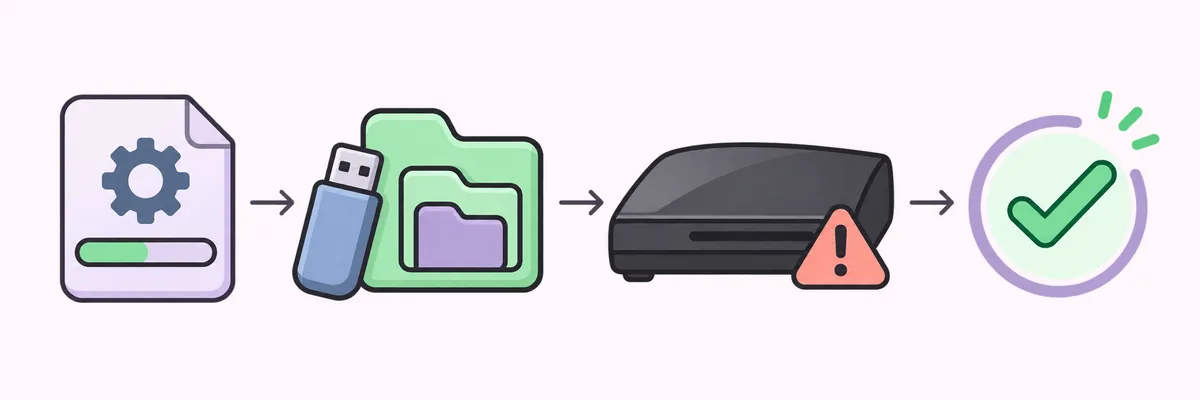
When the PS3 cannot find update data on USB
Check the USB layout before downloading another file. The standard PS3 update path is PS3/UPDATE/PS3UPDAT.PUP: PS3 is a folder at the drive root, UPDATE is inside it, and the update file is inside UPDATE. Keep the folder names in uppercase and do not add an extra directory level.
Use a USB storage device prepared according to PlayStation's current instructions. The console may not detect a drive with an unsupported format, a loose connection, an incomplete copy, or a file whose name has an extra extension. On a computer that hides known extensions, confirm the real filename rather than trusting the shortened display name.
Get system software from the official PlayStation support page linked below. Check that the destination identifies PS3 system software, then let the download finish before copying it. Do not rename a random PUP file or use a PS4, emulator, modified, or third-party package as a substitute.
- 1
Open the USB drive and confirm that PS3 is at its root.
- 2
Open PS3 and confirm that it contains an uppercase UPDATE folder.
- 3
Confirm that UPDATE contains PS3UPDAT.PUP with no extra file extension.
- 4
Reconnect the drive directly to the console and retry the update path shown in PlayStation's instructions.
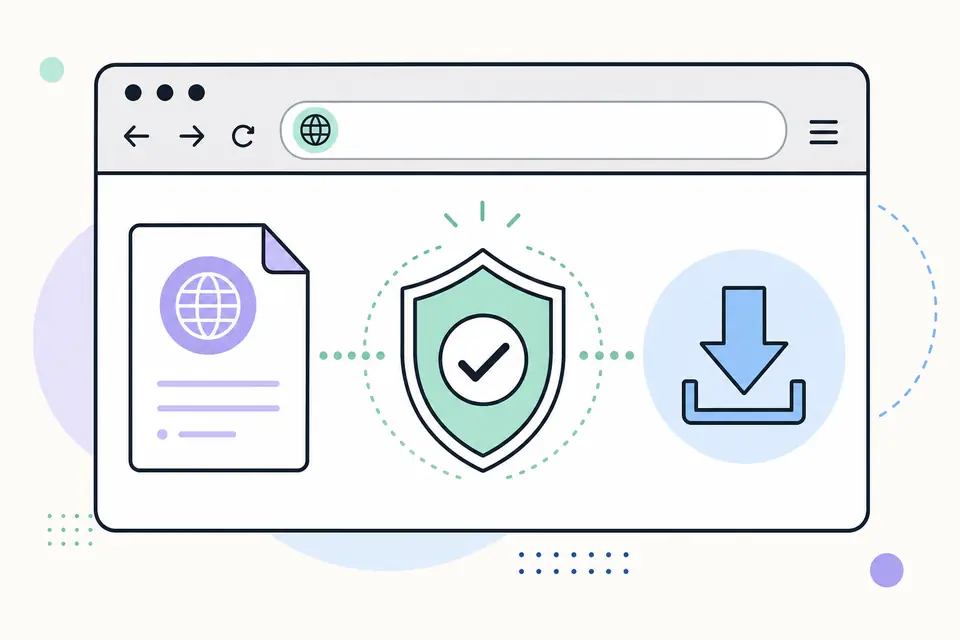
When a network download or update fails
For an online update error, first check whether the console is connected to the network and whether other network features work. A temporary connection or service interruption can stop a download before installation begins. Wait for the connection to stabilize, then retry from the console's System Update menu if it still offers that option.
If the download repeatedly fails, use the official PlayStation support instructions to choose a supported USB update. Download a fresh copy from Sony and let it complete before copying it. A third-party mirror cannot confirm whether a package is current or suitable for the console.
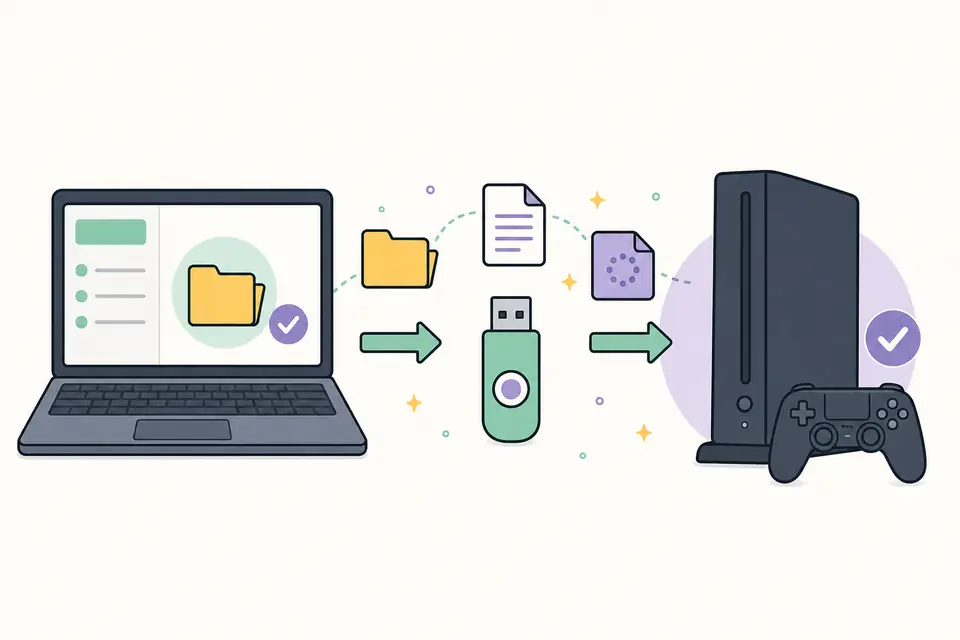
If the firmware update stops during installation
An update that stops after installation begins should not be treated like a missing USB file. Keep the console connected to stable power and do not remove the storage device while the system is reading or writing it. Some update stages include a restart or a screen that changes slowly; use the on-screen status and the official instructions for your console rather than guessing from elapsed time alone.
If the PS3 returns to the menu and shows an error, record the code and the percentage or stage where it stopped. Check the package source and USB path once, then follow the recovery option Sony documents for that state. Repeating the same interrupted attempt without changing a verified cause can increase the chance of another failure.
If the console remains unresponsive, avoid repeated power cycles. Record the screen and indicator state, then contact PlayStation Support or an authorized repair channel for model-specific advice.
Use Safe Mode only for the matching recovery case
Safe Mode can provide recovery and update choices when the normal XMB menu is unavailable, but it is not a universal fix for every PS3 update error. Use it only when the console's state and PlayStation's instructions point to a Safe Mode operation. Follow the exact on-screen wording, because adjacent recovery choices can have different effects.
If Safe Mode asks for system software on USB, verify the official source and PS3/UPDATE path again. Do not choose restore or initialization solely because the update choice failed. Back up accessible saves and stop if an option's effect is unclear.
For a normal update procedure, use the existing PS3 system software and USB update guide linked below. If the console cannot start or the same Safe Mode update fails again with a verified official package, capture the code and seek official support before trying another recovery action.
When repeated errors may involve the PS3 storage drive
A firmware file is less likely to be the only issue when the console reports storage problems, repeatedly fails at the same installation stage, cannot read data it previously used, or shows other startup problems. These signs do not prove that the hard drive has failed, but they are a reason to stop cycling through different update files and investigate the console state.
If the system still starts, copy important saved data using a supported method before attempting a recovery that could change the drive. If the PS3 cannot start or you hear unusual drive noises, repeated updates are unlikely to provide a reliable diagnosis. Use PlayStation's support path or a qualified repair service and describe the exact error code, update stage, and recent changes.
Avoid initializing the console or replacing the drive as a first response to a generic update error. Those steps can affect local data and require additional setup. Choose them only after confirming that the symptom points to storage and after reviewing the official procedure and backup options.
A low-risk recovery sequence for PS3 update errors
Use the sequence below to narrow down the cause without jumping straight to a reset. Change one verified condition at a time, and stop when the console's message does not match the step or an action could affect data. Official instructions take priority.
- 1
Record the exact error code, the current system version, and the stage of failure.
- 2
Confirm that the update package came from PlayStation Support and matches PS3 system software.
- 3
For USB, verify the PS3/UPDATE/PS3UPDAT.PUP path, file name, completed copy, and direct connection.
- 4
For a network failure before installation, restore a stable connection or use Sony's supported USB procedure.
- 5
Use Safe Mode only when the normal menu is unavailable and the official recovery instructions match the screen.
- 6
Back up accessible data and contact support if a verified update fails again or storage symptoms appear.
When to stop troubleshooting and contact PlayStation Support
Stop repeating updates when the same code returns with a verified package, the PS3 cannot stay powered on, storage errors appear, or a recovery option is unclear. Give support the code, model, update method, and steps already tried.
This guide does not host firmware files, provide modified system software, or diagnose hardware from an error code alone. Use Sony's current instructions for the exact console state. If the console is running custom firmware or another modification, pause before installing an official update and consult the maintained documentation for that exact setup; an update can change compatibility or remove modifications.
Fix PS3 Firmware Update Errors: PS3 Update Error Guide FAQ
Why does my PS3 say no applicable update data was found?
Check that the USB drive contains PS3/UPDATE/PS3UPDAT.PUP, with both folder names in uppercase and no extra file extension. Then confirm that the complete package came from PlayStation Support and is intended for PS3 system software.
Where should I download PS3 system software?
Use the PlayStation Support page linked in this guide. FirmwareDownload.wiki does not host a firmware package or verify third-party mirrors.
Can I use a USB update when the PS3 network update fails?
The official PlayStation instructions provide a supported USB update path. Use a fresh package from Sony, verify the required folder and file name, and switch to USB only after the current installation has stopped safely.
Should I force restart a PS3 when an update appears stuck?
Do not interrupt a screen that indicates the console is reading or writing system software. Follow the on-screen status and official instructions; if the console becomes unresponsive, record its state and seek model-specific support instead of repeated power cycling.
Will Safe Mode fix every PS3 update error?
No. Safe Mode is for specific recovery situations. Use only the option that matches the console state and official instructions, and avoid restore or initialization choices until you understand their data impact.
Can initializing the PS3 fix a firmware update error?
Initialization is not a first-line update fix and may remove local data. Back up accessible saves and follow PlayStation's documented procedure only when the displayed problem and support instructions call for it.
What if I use custom firmware or HEN?
Pause before applying an official update. Firmware updates can change compatibility with modifications, so consult the maintained documentation for the exact system setup and do not use an unverified package or code-specific workaround.
Official PlayStation reference
Use the first-party instructions to confirm the current system software package and the supported update procedure. This guide was checked on November 5, 2026; the PlayStation page remains the authority for live instructions.
- PlayStation Support - PS3 system software Official PS3 system software download and update instructions. Confirm the version, USB steps, and current requirements on the page before updating.