Choose the right game console firmware download path
Start with the console family, not a file name. PlayStation, Xbox and Nintendo use different update servers, folder rules and recovery screens. A search result that says firmware download can point to a version list, a support article, an emulator discussion or an unofficial archive. Those are different tasks. This page is the cross-platform map: it explains which platform page to open, what to confirm there and when a separate guide is safer than a direct download.
The official platform page remains the source of truth for the current package. FirmwareDownload.wiki makes the path easier to inspect, but it does not turn a community archive into an official distributor. When a platform provides an in-console update, use that route for a working device. Use a USB or offline package only when the manufacturer documents it for your model and symptom.
Before leaving this page, write down the console model, region, installed system version and the reason for updating. A routine maintenance update, a failed download, a failed boot and a replaced storage drive may lead to four different files. Choosing the right task first prevents most wrong-package errors.
- Identify PlayStation, Xbox or Nintendo and record the exact model or hardware revision.
- Use the platform's first-party support or release page instead of a renamed mirror.
- Separate normal update, recovery image and full reinstallation before downloading.
- Read the release notes, region limits and data-loss warning on the destination page.
- Keep a backup and stable power available until the console confirms the new version.
Match the console model before downloading
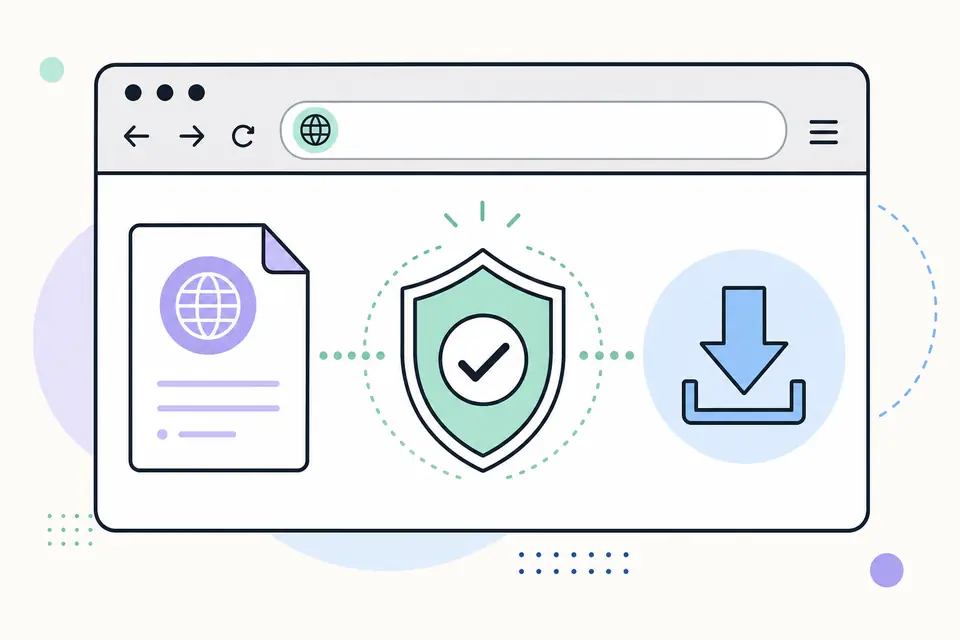
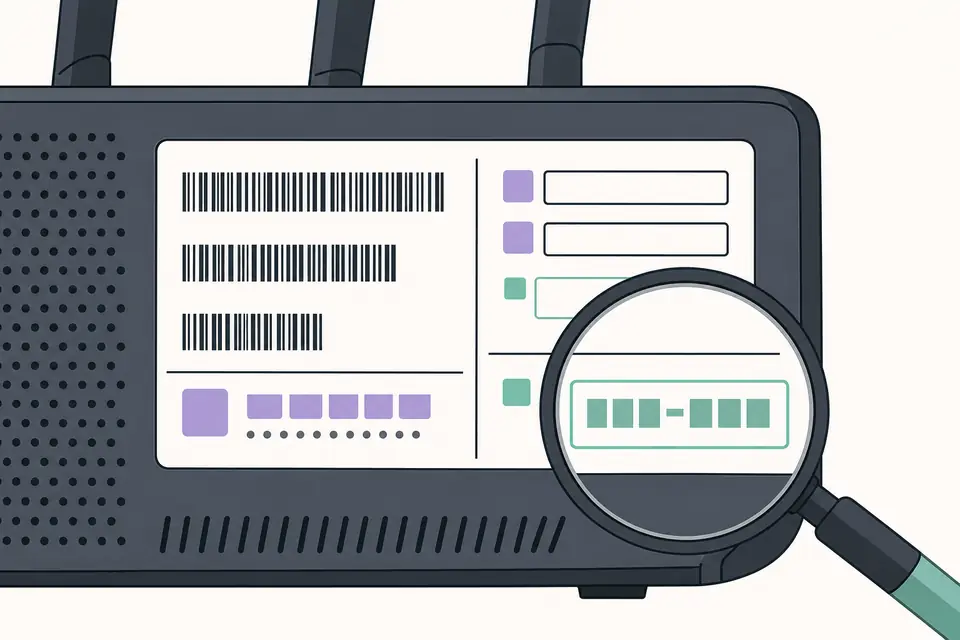
Model matching is the most important part of a safe console firmware download. Read the label on the console, the About or System Information screen, and the region information shown by the platform. Product families often share a name while using different system software or recovery instructions. For example, a normal PS4 update file is not a PS4 reinstallation file, and a Switch update explanation does not provide a public emulator archive.
Use the model page linked from the directory when it exists. It should state whether the package is for a normal update, a recovery screen, a storage replacement or an emulator setup. If the support page asks you to select a region, serial range or system version, complete that selector instead of guessing a direct URL. The newest date is not a compatibility check.
Keep the current version visible while you research. Some consoles reject an older package, while others use a recovery package only after a documented failure. If the model, region or update state is unclear, stop at the source page and contact platform support rather than testing several files.
- 1
Open System Information and record the platform, model family, region and installed version.
- 2
Compare the model name with the exact wording on the first-party support page.
- 3
Check whether the page describes an update, recovery, reinstallation or developer-only package.
- 4
Read storage, USB, network and free-space requirements before starting the download.
- 5
Save the source URL and release notes with the package so a later failure can be traced.
Update, recovery, and reinstallation are different
A normal update keeps a working console on a supported software path. It may run from System Settings, an online update menu or a standard USB folder. A recovery package is for a console that cannot complete the ordinary path and is named by the manufacturer for that situation. A reinstallation file rebuilds the system and can remove local games, saves, accounts or settings. Never select the largest file simply because it looks more complete.
Read the action label and the data warning together. PlayStation support separates an update file from a full reinstallation file; Xbox calls its documented offline package OSU1 and supplies a Startup Troubleshooter path; Nintendo generally documents an online system update process instead of a public general-purpose archive. The platform's wording matters more than a third-party page's filename.
If the device still boots, use the least destructive documented route. If a recovery screen is required, record its exact menu and error code first. Back up what the console can still access, then follow the matching official instructions. A recovery operation is not a license to try an unrelated downgrade or modified package.
| Path | Best fit | Caution before use |
|---|---|---|
| Normal update | Working console with an in-system or standard USB update | Keep power connected and do not interrupt the writing stage. |
| Recovery update | Official recovery screen after a documented boot or update failure | Confirm the exact model and whether settings or storage can change. |
| Reinstallation | Full system rebuild after serious corruption or drive work | Assume local data may be erased unless the manufacturer says otherwise. |
PlayStation firmware download routes
For a PlayStation firmware download, start at PlayStation Support and select the exact console family. The PS5 support structure separates the latest system software, ordinary updating, reinstallation and troubleshooting. The PS3 page has its own system software and USB conventions, while PS4 uses separate update and reinstallation pages. The existing links in this directory keep those intents apart so a reader does not mistake a recovery package for a routine update.
A normal PlayStation USB update uses a model-specific folder and filename. Confirm the path on the official page every time because a PS3, PS4 and PS5 do not share the same name. Check free space, keep the file name unchanged and allow the console to verify the media before installation. For a failed network update, the official support page may recommend a USB path or Safe Mode option; do not jump straight to initialization.
This site does not provide modified firmware, HEN packages or unverified PSN mirrors. The PS3 firmware page, PS4 update page, PS4 reinstallation page and PS3 error guide are the next steps when your question is model-specific. For a current version or a changed download URL, open Sony's live support page before acting.
- PS3: use the PS3 system software page and confirm the PS3/UPDATE/PS3UPDAT.PUP path.
- PS4: distinguish the smaller update file from the destructive reinstallation file.
- PS5: keep normal update and reinstallation PUP instructions separate.
- Use Safe Mode only when the screen and Sony's instructions call for the matching option.
- Record the error code and update stage before trying another package.
Xbox and Nintendo update routes
Xbox and Nintendo illustrate why a broad game console firmware download query needs platform context. Xbox Support documents an Offline System Update process for certain recovery cases. It specifies the OSU1 package, an NTFS USB drive, a root-level $SystemUpdate folder and the Startup Troubleshooter. Those details are part of the procedure, not optional suggestions. The Xbox page in this directory links to the Microsoft source and explains why an Insider build can reject a public package.
Nintendo Switch normally exposes system updates from System Settings. Nintendo's support and change-history pages are the authority for the current version and supported models. This directory does not host Nintendo firmware archives, prod.keys or title keys. A community release list may help you understand version labels or checksums, but it is not a substitute for Nintendo's support path or a license to redistribute copyrighted files.
For either platform, check whether the console is working, whether the update is online or offline, and whether the package is intended for the same region and system branch. If the official page does not provide a stable public file, keep the link to the official instructions instead of guessing a CDN URL.
| Platform | Use the official route for | Do not assume |
|---|---|---|
| Xbox | Offline recovery with OSU1 and Startup Troubleshooter | OSU1 is not a supported downgrade and may not match an Insider build. |
| Nintendo Switch | Online System Settings update and version history | A community firmware archive is not an official Nintendo download. |
| Emulator | Legal setup using software exported from hardware you own | Do not download console firmware or keys from an unauthorized archive. |
Prepare USB media and verify a firmware file
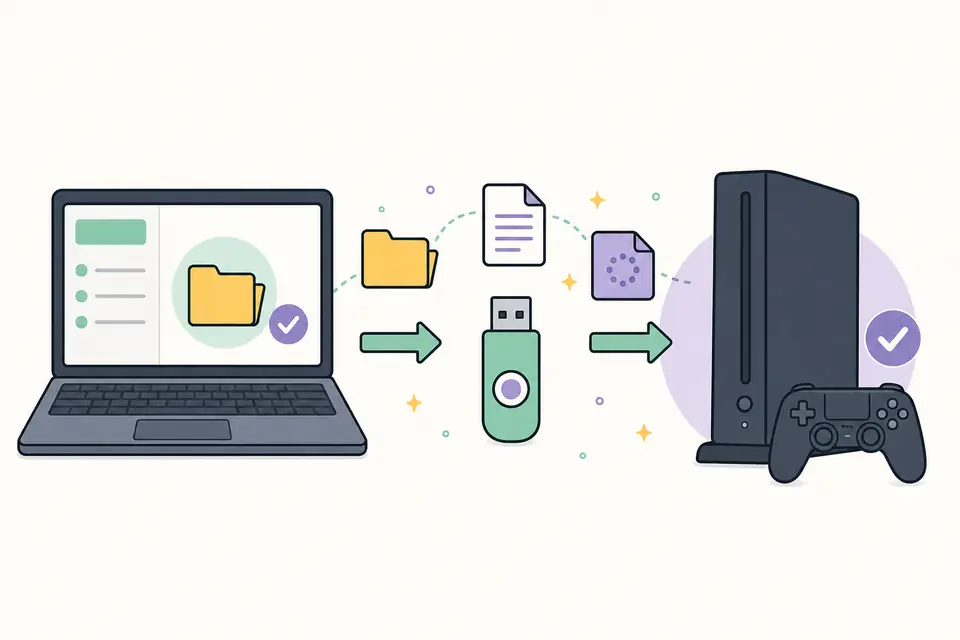
A USB update succeeds only when the console can identify both the media and the package. Follow the manufacturer's format requirement exactly; NTFS, FAT32 and exFAT are not interchangeable rules. Create the required folders at the drive root, use the exact capitalization and keep the original filename. Do not copy a ZIP file when the instructions require an extracted folder, and do not add an extra directory level while moving files.
When a checksum is published, calculate it after the download and compare the complete value. A matching SHA-256 confirms that the bytes you received match the published bytes; it does not prove that the package is compatible with every model. If the vendor provides a signed manifest or a download portal with a model selector, use that signal together with the checksum. Keep the original archive until the console has restarted and reported the expected version.
Safely eject the drive, connect it directly to the port named by the support page and keep the console on stable power. A progress screen can pause while files are checked or written. Do not remove the USB drive or force a restart because a minute feels long. Use the official recovery instructions if the console returns an error.
- 1
Format the drive using the platform's documented file system and keep enough free space.
- 2
Create the exact root folder and filename required by the model-specific instructions.
- 3
Compare the downloaded file size, checksum or signature with the first-party record.
- 4
Eject the drive safely, connect it directly and start the documented update menu.
- 5
Wait for the final restart, then verify the installed system version in Settings.
Troubleshoot an incompatible or failed update
Treat a failed update as a diagnosis problem, not an invitation to collect more files. Write down the complete error text, code, console model, current version, network or USB method and the percentage or menu where it stopped. A message that says no update data was found points to media, folder or filename checks. A failure after installation begins can involve storage, power or a package that the platform rejected for compatibility.
Check one verified condition at a time: exact model, region, system branch, available space, media format, folder path, file name and completed download. If an official page lists a newer or required base version, follow that sequence. Do not mix an update PUP, OSU package, recovery image or modified firmware from another platform. If the same verified package fails twice at the same stage, stop repeating it.
Back up accessible saves and configuration before a recovery or reinstallation. When the console cannot boot, shows storage symptoms or remains unresponsive, contact the manufacturer or an authorized repair channel with the code and steps already tried. Initialization, drive replacement and downgrade experiments can create data loss and are not generic fixes.
- No file found: recheck root folders, capitalization, filename and media format.
- Download stops: confirm network stability, free space and the official source.
- Installation stops: keep power connected, record the stage and avoid repeated forced restarts.
- Version rejected: confirm region, model, system branch and whether a newer base version is required.
- Repeated failure or storage symptoms: stop and use manufacturer support or qualified repair.
When a guide is better than a download page
A download page answers where the file or official support selector lives. A guide is better when the task is procedural: preparing a PS3 USB folder, choosing a PS4 reinstallation file, recovering an Xbox with OSU1, checking a Switch update path or installing lawful firmware in an emulator. The distinction keeps a broad directory from pretending that one package works for every console.
Use the related links below when you already know the platform. The PS3 and PS4 pages provide model-specific source and file boundaries, the Xbox page records the offline USB workflow, the Nintendo page explains online updates, and the Ryujinx guide explains the legal source boundary. Each page states what it does not provide so a search for a missing package does not turn into an unsafe download.
If the question is still only “which firmware should I use?”, return to the model and source checks above. Once the model, region and update state are clear, the official destination can answer the live version question better than a static list.
A short checklist before any console firmware download
Use this final check immediately before opening a download action. The goal is to make the important facts visible while there is still time to stop. A correct package from the wrong source, or a correct source opened for the wrong model, is still the wrong update.
Keep the support page, the model label and the backup location available at the same time. If the console contains irreplaceable saves, captures or settings, treat the backup as a prerequisite rather than a later improvement. If the manufacturer says the package is destructive, do not continue until the data decision is explicit.
- Console family and exact model match the support page.
- Region, revision and installed version are recorded.
- Update, recovery or reinstallation purpose is clear.
- Source domain, release notes and checksum are available.
- Backup, stable power and the required USB format are ready.
- You know where to stop and who to contact if the same error returns.
Game Console Firmware Download: Update Guides FAQ
What is the safest way to find a game console firmware download?
Start with the console family and exact model, then open the linked PlayStation, Xbox or Nintendo support page. Confirm the region, version, file type and installation instructions before downloading.
Can I use firmware for a similar console model?
Do not assume that a similar name means compatibility. Use a package only when the manufacturer lists your exact model, revision and region.
Should I choose an update, recovery or reinstallation file?
Use a normal update for a working console. Choose recovery or reinstallation only when the official instructions match the failure, and assume reinstallation may erase local data.
Does FirmwareDownload.wiki host console firmware or keys?
The site provides source navigation and safety guidance. It does not host Nintendo firmware, prod.keys, title keys, modified packages or unverified console archives.
Why can a correct download fail to install?
Common causes are a model or region mismatch, the wrong USB format, an extra folder level, a changed filename, an incomplete download, storage trouble or an unsupported system branch.
How often should I recheck a firmware source?
Open the live manufacturer page whenever you plan an update. Review dates on this directory show when a route was checked, but platform versions and support instructions can change.