
How to use this firmware download directory
A firmware download is only useful when it matches the device that will install it. Begin with the broadest category that describes your product, such as a game console, phone, router, camera or television. The category pages then narrow the choice to a manufacturer and, where available, an exact model. This structure keeps a generic search phrase from sending you to a file intended for a different chipset, storage layout or regional build.
Before downloading anything, read the short compatibility note on the destination page. It should tell you whether the source is a manufacturer support page, a release page, a recovery package or a guide that only points to an official destination. FirmwareDownload.wiki is an index and verification layer: it does not rename vendor packages, remove safety notices or imply that a third-party mirror is an official distributor.
If you already know the model number, use the closest brand or model entry. If you only know the symptom, start with the relevant guide because normal updates, recovery images and reinstallations carry different data-loss risks.
- Identify the product family and exact model printed on the device, label or settings screen.
- Check the hardware revision, country or region code and current software version.
- Open the official source page and compare its version, release date and file name with the index entry.
- Choose a normal update unless the manufacturer specifically documents recovery or reinstallation for your symptom.
- Keep a backup and stable power before the package is copied or installed.
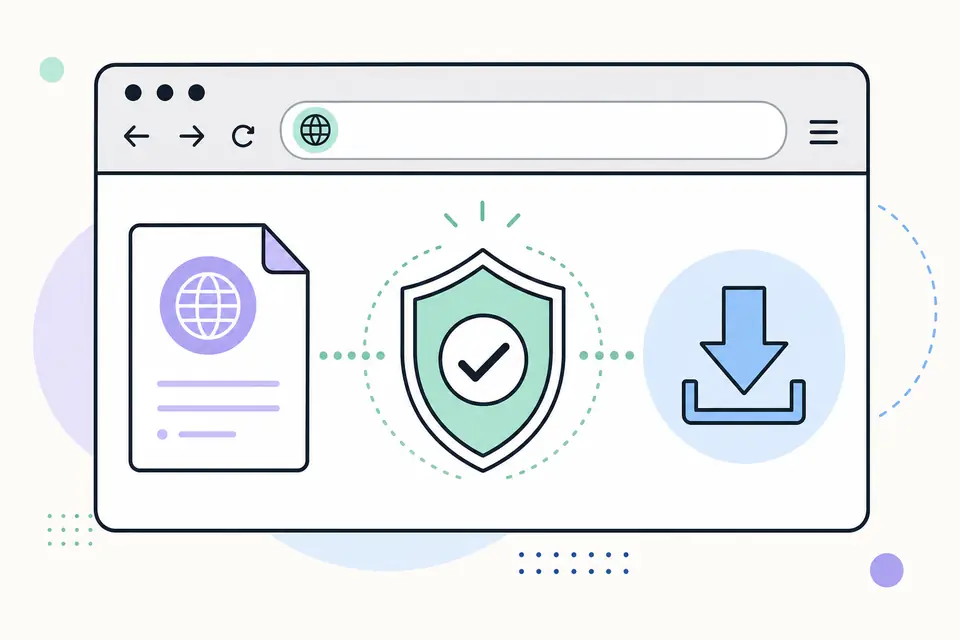
Browse firmware downloads by device category
The directory groups pages by the decision a reader makes, rather than by a long list of unrelated file names. Console pages explain system software and USB or recovery paths. Phone and tablet pages emphasize exact model, CSC and binary information. Networking pages focus on hardware revision, product family and the vendor's support portal. Camera, security, TV and media pages add region or board identification because a visually similar device can use a different image.
Use the table as a starting map, then follow the model-specific link for the final compatibility decision. The official model label and release notes remain authoritative.
| Category | Best fit | Caution before download |
|---|---|---|
| Game consoles | PS3, PS4, PSP and other system software pages | Separate normal update, recovery and reinstallation files; keep the required USB path. |
| Phones and tablets | Samsung, ZTE and model or CSC lookups | Model suffix, region and bootloader binary must match the package. |
| Routers and networking | TP-Link, Ubiquiti and RouterOS support paths | Hardware version and product family are part of the model. |
| Cameras and security | Hikvision, Dahua, Reolink, Wyze and Canon | Region, board revision and device series can block an otherwise valid image. |
| TVs and media devices | Hisense, TCL, Samsung TV and Android TV box research | Panel, mainboard and chipset details are needed before a USB update. |
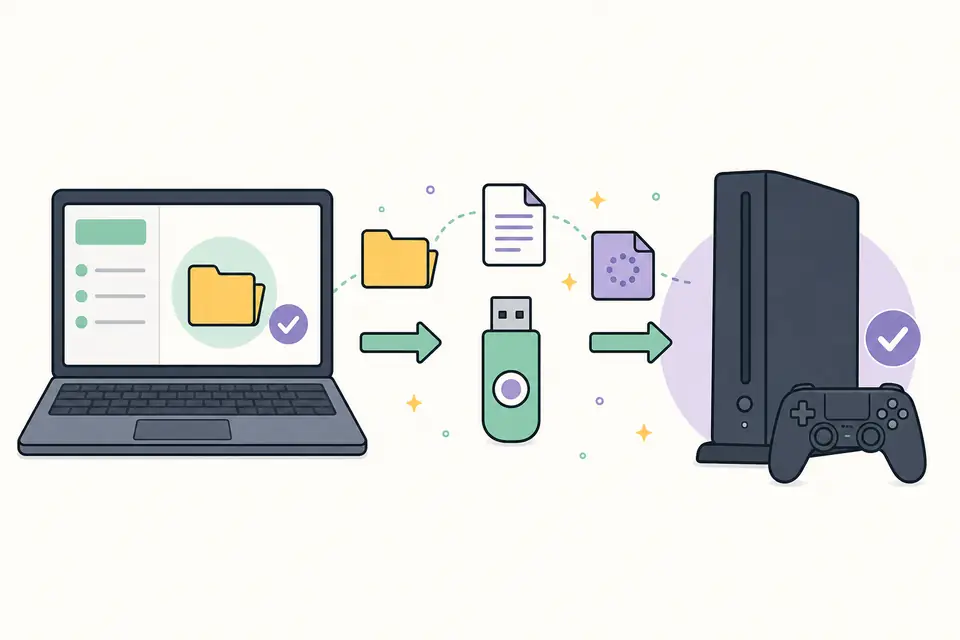
What to verify on an official firmware source
A trustworthy source page gives you more than a large download button. Look for the manufacturer's domain or a clearly identified release repository, a model selector, a version or build number, a publication date and an installation document. The file name should make sense for the platform, and the instructions should say whether the package is an update, recovery image, bootloader file or full reinstallation. When a checksum is published, compare it after the download rather than trusting a mirror's label.
Read the release notes for compatibility warnings. A package can fix a security issue while also changing bootloader behavior, wireless calibration, regional channels or rollback rules. If the page lists several regions, do not choose the newest-looking file by date alone. The correct regional build is safer than an unrelated newer build. When a manufacturer asks you to enter a serial number or product code, use that workflow instead of guessing a direct URL.
The index pages keep source links visible so you can recheck them. Dates shown here describe when the directory was reviewed, not a promise that a vendor's version remains current forever. For a dynamic product, treat the linked support page as the authority and compare it with the version shown on your device immediately before installation.
- 1
Record the exact model, revision, region and current build from the device settings or label.
- 2
Open the linked first-party support or release page in a new tab and verify the product selector.
- 3
Read the release notes and installation instructions, including rollback and data-loss warnings.
- 4
Download the package once, keep the original file name and verify any published checksum.
- 5
Only then copy the file to the required media or start the vendor's update utility.
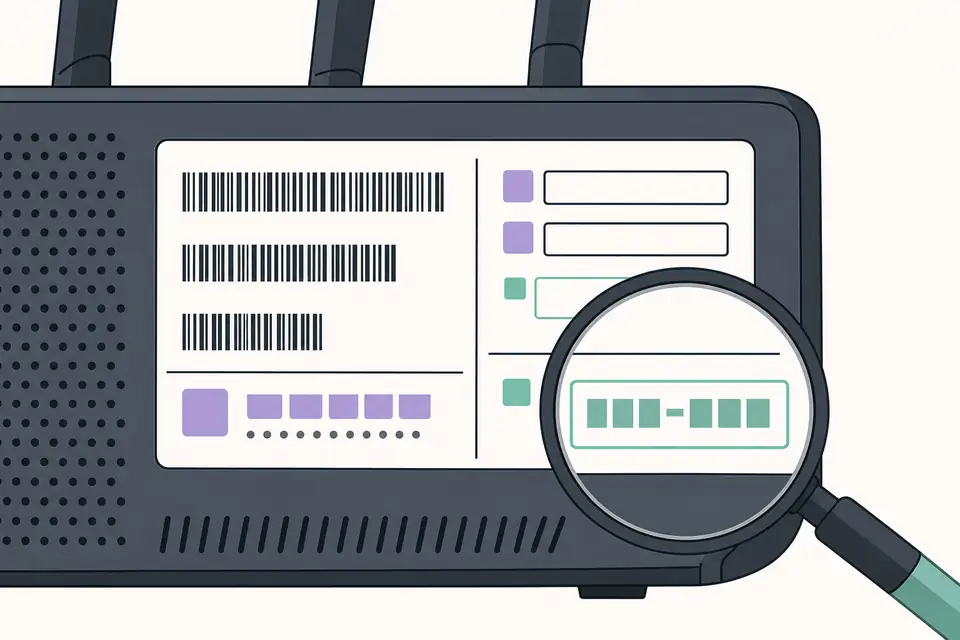
Choose the right update path
Most devices have a normal update path for a working installation. It may be a settings menu, a vendor desktop utility or a USB package with a prescribed folder name. Recovery and reinstallation files are different: they are intended for a failed boot, corrupted system partition or factory reset scenario. The latter can erase user data, so a page should state that risk before the call to action.
If an update fails, stop and record the exact error instead of trying several unrelated packages. Check the storage format, file name, folder capitalization, power supply and available space first. Then return to the official guide for that model. A recovery image for a close-looking model can make the situation worse, especially on phones, routers and TVs where regional or board identifiers are enforced.
For emulators and older consoles, use lawful system software obtained through the platform's official channel or from hardware you own. The directory can explain an installation workflow and link to documentation, but it does not provide copyrighted firmware or console keys.
| Path | Use it when | Before you proceed |
|---|---|---|
| Normal update | The device starts and the vendor documents an in-system or standard USB update | Back up data and keep power connected until the confirmation screen appears. |
| Recovery image | The device cannot complete a normal boot or update and the official guide names recovery | Confirm the exact model and understand whether settings or storage will be reset. |
| Reinstallation | The vendor requires a full system rebuild | Treat it as destructive unless the manufacturer explicitly says data is preserved. |
A repeatable, low-risk firmware download workflow
The safest workflow is deliberately unexciting. Write down the current version and any configuration that would be difficult to recreate. Confirm that the package is intended for your hardware and region, then read the installation guide from start to finish. Avoid download pages that hide the source, change the file name, bundle an installer or ask you to disable security controls without a clear reason.
After the file is verified, prepare the media exactly as the vendor describes. FAT32, exFAT, a particular directory name and a case-sensitive filename are common requirements, but they are not universal. Eject the media safely, connect it to the correct port and allow the device to finish its checks. Do not interrupt a progress screen simply because it appears idle; use the documented recovery procedure if the manufacturer provides one.
Finally, record the installed version, date and result. That small log makes later troubleshooting easier and helps you decide whether a future firmware download is an update, a rollback or a repair.
- Back up settings, saves, photos or configuration exports before a risky operation.
- Use a stable network or a verified USB device and avoid sleep or power-saving modes.
- Keep the original package and checksum until the device has restarted successfully.
- Check the device's reported version after reboot instead of assuming the progress bar finished correctly.
- If the result is unexpected, stop using random mirrors and return to the official support instructions.
When to use a guide instead of a download page
A download page answers where the package belongs and which source to open. A guide is a better fit when the real question is how to prepare a USB drive, locate a Samsung CSC, identify a TP-Link hardware revision or recover a camera that rejects a regional image. Follow the guide link when your uncertainty is about the procedure rather than the file.
This separation keeps each page honest: the directory covers discovery, model pages cover compatibility, and guides cover steps and failure messages.
Firmware Download by Device Category and Brand FAQ
What is the safest way to find a firmware download?
Start with the device category, open the exact brand or model page, then use the linked manufacturer support or release page. Verify the model, revision, region, version and file name before copying the package.
Can I use a firmware file for a similar model?
Usually you should not. Similar names can hide different hardware revisions, chipsets, panels or regional builds. Use a file only when the manufacturer explicitly lists your exact model and revision as compatible.
Should I choose an update, recovery or reinstallation file?
Use a normal update for a working device. Choose recovery or reinstallation only when the official guide names that path for your symptom, and assume a reinstallation may erase data unless the vendor says otherwise.
Does FirmwareDownload.wiki host the firmware files?
The directory links to identified support and release sources. It does not rename vendor files or provide copyrighted console firmware and keys. The destination page remains responsible for the current package and its instructions.
Why can a download be correct but still fail to install?
Common causes include an incorrect model or region, a hardware revision mismatch, a wrong folder or filename, unsupported media formatting, an incomplete file or a package that is older than the installed version. Check the model-specific guide before trying another file.
How often should I check a firmware download page?
Check the linked official source whenever you plan an update. The directory records review dates to make the source trail clear, but vendor versions and support instructions can change after a page is reviewed.