
Start with the short answer
To update an ASUS BIOS, identify the exact product model and current BIOS version, open that model's ASUS support page, read the release notes, and use only the update method documented for that product. A laptop and an ASUS desktop motherboard may use different tools even when both are called BIOS updates.
The official Download Center is the safe starting point, but it is not a universal file list. The correct package depends on the model, board revision, operating system and sometimes a required bridge version. If you cannot identify the exact model, stop at the source page and do not download a guessed file.
Identify the exact ASUS model and current BIOS version
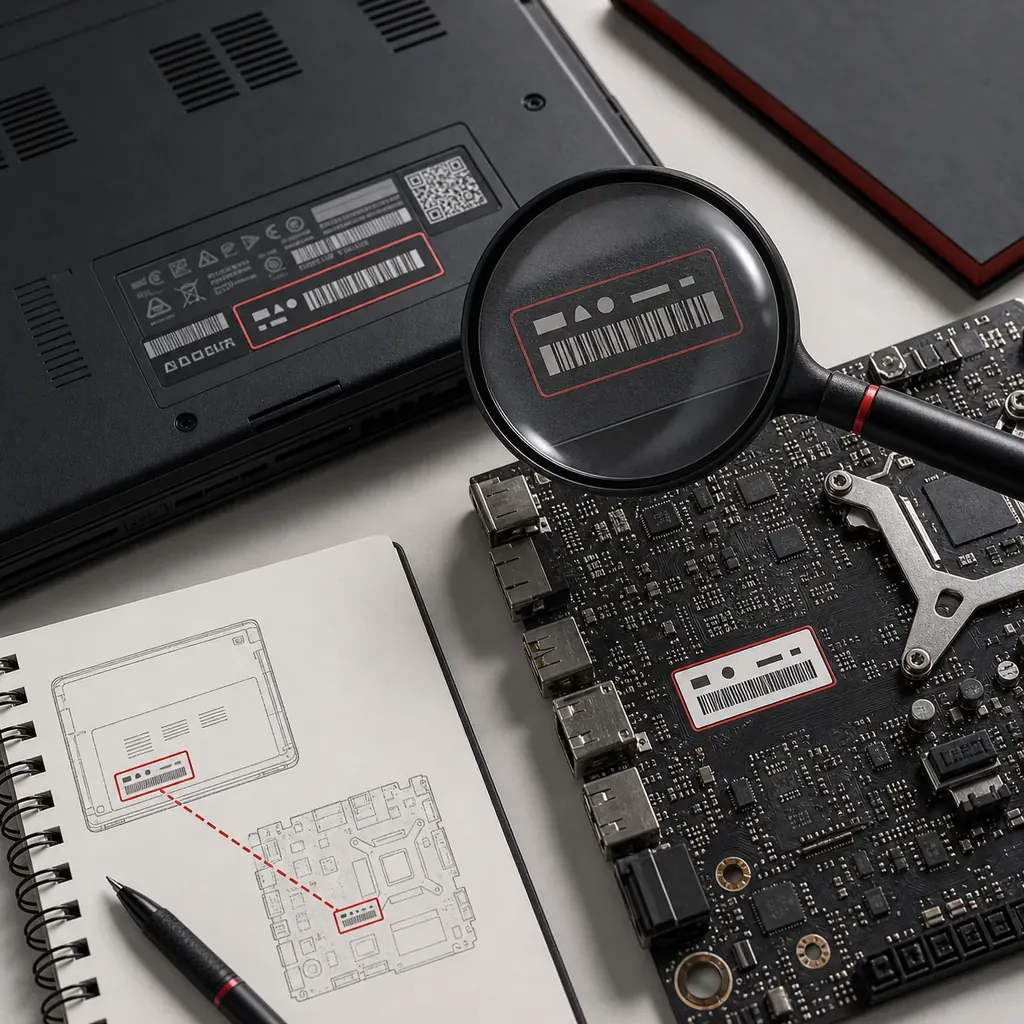
Record the complete model string before searching. ASUS product families can contain similar names with different firmware, and a motherboard revision or laptop suffix can change compatibility. On a prebuilt computer, the chassis model may be more useful than the motherboard chipset name.
Check the installed BIOS or UEFI version in the firmware setup screen or Windows System Information. Compare every suffix and revision with the ASUS support page; do not rely on a third-party scanner as the final source.
- Exact ASUS laptop, desktop or motherboard model
- Motherboard revision, serial number or service tag when shown
- Current BIOS/UEFI version and date
- CPU platform and Windows version
- Release-note prerequisites, bridge versions or recovery instructions
Find the official ASUS BIOS package
Open ASUS Support, search for the exact model and select Driver & Utility or BIOS & Firmware. Read the release notes before choosing a file. A newer date alone does not prove that the package is required, compatible with your board revision or appropriate for a stable system.
Download from the ASUS model page rather than a mirror, forum attachment or a file with a similar name. Keep the original archive until the update is complete, and follow ASUS instructions if the archive includes a BIOSRenamer utility, a required filename or a special USB port.
- Use the ASUS model page, not a generic search result
- Read version notes and any required intermediate version
- Confirm the file is for the exact product and revision
- Check the manual for file naming and USB formatting rules
- Keep the official archive and release notes for rollback context
Choose the ASUS update method that your model supports
ASUS names its tools by product family. EZ Flash, MyASUS, a Windows BIOS utility and BIOS FlashBack are not interchangeable. Use the method shown in the exact product manual or support article, and do not force a desktop motherboard procedure onto a laptop.
If the model page offers more than one method, prefer the method that lets you verify the package and keep the machine on stable power. A USB method may be required even when Windows is running normally.
| Method | Best fit | Caution |
|---|---|---|
| MyASUS or Windows utility | Supported ASUS laptops and OEM desktops | Use only the utility offered for the exact model; do not install a generic updater. |
| UEFI EZ Flash | ASUS motherboards or products whose manual specifies the UEFI tool | Follow the manual for USB format, file location and whether the archive must be extracted. |
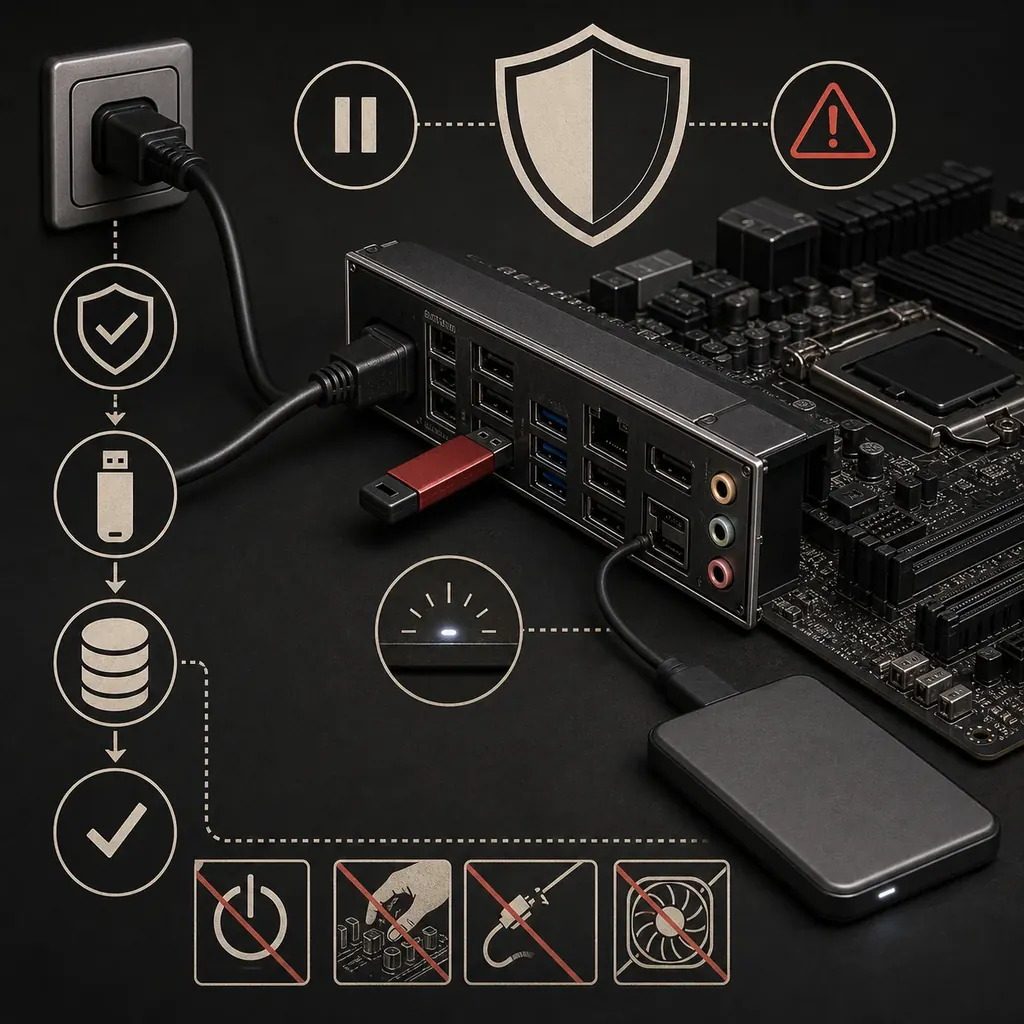
| USB BIOS FlashBack | Only models with a FlashBack button and marked port | The renamed file, port, power state and indicator pattern are model-specific. |
| Windows Update | OEM firmware offered through the supported Windows channel | Do not treat a Windows update catalog entry as permission to flash an unrelated ASUS package. |
Prepare Windows 11, BitLocker and stable power
A BIOS update changes the firmware layer below Windows. Close applications, disconnect unnecessary peripherals and use AC power. On a desktop, avoid a switchable power strip or an unstable outlet; on a laptop, keep the charger connected and meet ASUS battery requirements.
If BitLocker is enabled, save the recovery key before changing firmware or boot settings. Follow the current ASUS and Microsoft instructions about suspending protection, then confirm that protection is resumed after the next successful boot.
- Save important files and verify a backup before flashing
- Record the current BIOS settings that you need to restore
- Keep AC power connected and do not close the lid during a laptop update
- Save the BitLocker recovery key and follow the supported suspend/resume flow
- Remove overclocking or unstable memory settings before starting
How to update ASUS BIOS step by step
The labels differ between ASUS products, but the safety sequence is consistent. Stop if the tool reports a model mismatch, invalid file, missing prerequisite or power warning.
Do not browse, restart, sleep or unplug the computer while the flash is being written. The progress indicator may pause during verification; follow the manual instead of interrupting it.
- 1
Write down the exact model, board revision and current BIOS version.
- 2
Open the ASUS support page for that model and compare the release notes with your current version.
- 3
Download the official package, extract it only as instructed and prepare the required USB drive or Windows utility.
- 4
Start the supported update method from MyASUS, Windows or UEFI EZ Flash, or use FlashBack only when the model documents it.
- 5
Confirm the displayed filename and model before accepting the flash; keep power connected until the system reboots by itself.
- 6
Enter BIOS after reboot, load only the settings you understand, boot Windows and verify the new version and BitLocker state.
Understand BIOS FlashBack and recovery boundaries
BIOS FlashBack can help some ASUS motherboards update with limited system functionality, but the feature is not present on every board. The marked button, USB port, filename and light pattern are part of the model-specific procedure. A generic FlashBack tutorial is not enough evidence that your board supports it.
If an update fails, keep the machine powered only when the official indicator shows that the process is still active. If the board will not start afterward, use the exact manual's recovery steps or ASUS support. Do not repeatedly try unrelated files, rename packages by guesswork or use a third-party recovery archive.
- A failed flash may require the model's built-in recovery path or service
- A black screen does not prove that the process is finished
- Do not clear settings or remove the CMOS battery unless the manual directs it
- If the package is rejected, stop and recheck model, revision and filename
- Use ASUS support when the documented recovery path does not restore boot
Check the system after the reboot
Return to BIOS/UEFI and verify the version, date and storage or boot mode. Restore only settings you recorded, then boot Windows and confirm that the expected devices, network and display are available.
Watch the next restart for a BitLocker recovery prompt. If it appears, use the saved recovery key and confirm the firmware change before resuming protection. Keep the ASUS release notes and package metadata until the system has completed a normal restart cycle.
How to update ASUS BIOS safely FAQ
How do I update ASUS BIOS?
Identify the exact ASUS model, open its official support page, read the release notes and use the method documented for that product: MyASUS or a Windows utility, UEFI EZ Flash or, on supported motherboards, USB BIOS FlashBack. Never use a file for a similar model.
Can I update ASUS BIOS from Windows 11?
Sometimes. ASUS laptops and OEM desktops may provide MyASUS or a signed Windows firmware utility, while many motherboards use UEFI EZ Flash. The exact model page and manual decide which method is supported.
Can I update an ASUS BIOS without a USB drive?
Some models support MyASUS, a Windows utility or another documented path. Other products require a USB drive for EZ Flash or FlashBack. Do not assume that a method available on one ASUS model works on another.
Where can I download an ASUS BIOS update?
Use the ASUS Support Download Center and select the exact laptop, desktop or motherboard model. There is no safe universal ASUS BIOS file, so this page does not invent a version-specific direct link.
Should I suspend BitLocker before an ASUS BIOS update?
Save the recovery key first, then follow the current Microsoft and ASUS instructions for firmware changes. A successful BIOS update can still trigger BitLocker recovery if boot measurements change; resume protection after the next verified boot.
What if an ASUS BIOS update fails or the screen stays black?
Do not interrupt a documented active process. If the update has clearly stopped, use the exact model manual's recovery or FlashBack procedure and contact ASUS support when that path does not restore boot. Do not retry with a guessed file or rename package.
Official ASUS references
These official ASUS pages were checked on August 6, 2026. They describe model-dependent update methods; none is a promise of one universal latest BIOS file.
- ASUS Support Download Center Select the exact ASUS laptop, desktop or motherboard model before opening BIOS and firmware packages.
- ASUS — BIOS update in Windows Official Windows and MyASUS paths where the product supports them.
- ASUS — EZ Flash and firmware update Model-dependent UEFI and USB update guidance for supported ASUS products.
- ASUS — BIOS update and FlashBack guidance Official instructions and boundaries for ASUS update or FlashBack workflows.
- ASUS — BIOS recovery or troubleshooting Use the exact product procedure when an update is rejected or the system does not boot normally.
- Microsoft — BitLocker recovery planning Keep recovery information available before firmware or boot-setting changes.