
Start with the exact device before you download firmware
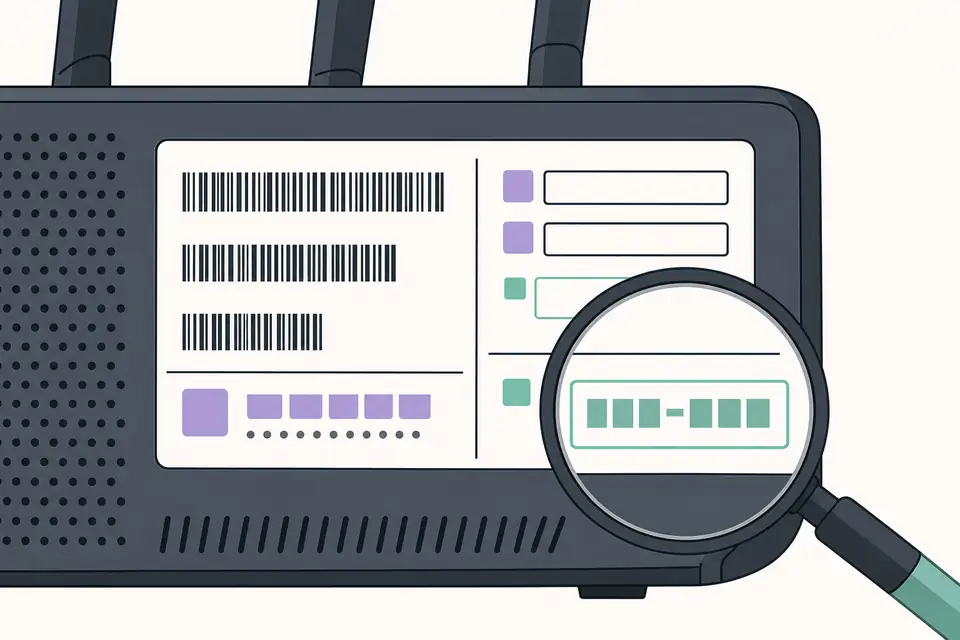
Knowing how to download firmware safely begins with an identity check, not a search result. Write down the manufacturer, product family, complete model number, hardware revision and current software version. A router may show a version such as V1 or V2 on its label, while a phone may add a regional suffix and a console may distinguish normal system software from a reinstallation package. Similar names can hide different chips, panels, storage layouts or bootloaders.
Use the device settings, a label, the original invoice or the vendor's model selector to confirm the string. Do not replace a missing suffix with a best guess. If the device will not start, photograph the label and record the error before choosing a recovery file. A page that lists only a broad family name is a starting point; the manufacturer's compatibility table remains the authority for the final file.
- Record the exact model and hardware revision, including hyphens and regional suffixes.
- Note the installed version and whether the device is working, stuck or unable to boot.
- Check the country, carrier, CSC, board or panel code when the vendor documents one.
- Separate normal update, recovery and full reinstallation files before opening a download.
Find a first-party firmware download source
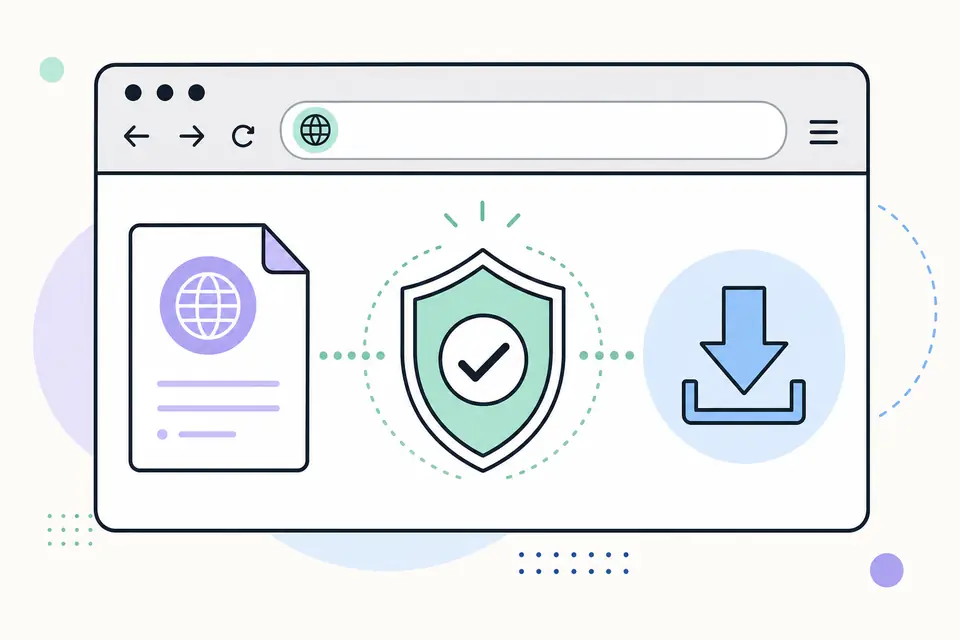
To learn how to download firmware, search for the manufacturer's support or release page rather than a generic file name. A trustworthy page shows a product selector, version or build number, release notes, installation guidance and a vendor or documented project domain. The page may link to a storage host, but the support page should explain what the file is and which models it covers.
A third-party mirror can be useful for an archived version only when the vendor no longer serves it and the package can be compared with an authoritative checksum or signature. Do not call a mirror official, and do not use a download that changes the file name, bundles an unknown installer or asks you to disable security controls. Keep the source page, release notes and any verification file beside the package so you can review them again later.
| Source signal | What it tells you | What to check next |
|---|---|---|
| Vendor support portal | The usual path for consumer consoles, routers, cameras and phones | Use the model selector and read the regional or hardware revision note. |
| Official release repository | Open-source projects that publish images and signed manifests | Match the release, architecture and signature instructions. |
| Manufacturer download host | A file linked from a documented support page | Return to the support page if the direct URL looks temporary or unsigned. |
| Community mirror | A possible archive when first-party hosting is gone | Require an independent hash or signature; otherwise do not flash it. |
| Forum attachment or bundled tool | Unverified material with unclear ownership | Treat it as a stop signal, not as a firmware source. |
Verify the firmware file before opening it
A checksum confirms that the bytes you received match a published digest. Prefer SHA-256 or SHA-512 when the vendor provides one. On Windows, run `Get-FileHash -Algorithm SHA256 .\firmware.bin` in PowerShell; on macOS use `shasum -a 256 firmware.bin`; on Linux or WSL use `sha256sum firmware.bin`. Compare the complete hexadecimal value, not only its first few characters.
A digital signature adds an authenticity check because a checksum file can be replaced along with the package. OpenWrt's verification guidance describes a chain in which a signing key verifies a signed checksum list and that list verifies the individual image. Follow the vendor's own GPG, certificate or signing instructions, and confirm a public-key fingerprint through a second first-party channel when one is provided. If the hash or signature fails, delete the file and do not flash it.
- 1
Download the firmware, checksum list and detached signature from the same documented source.
- 2
Check that the file size and filename match the release notes before calculating a hash.
- 3
Calculate SHA-256 or SHA-512 locally and compare every character with the published value.
- 4
Verify the detached signature or signed manifest with the vendor's public key or certificate.
- 5
Keep the original evidence until the device has restarted and reports the expected version.
Prepare USB media and choose the right update path
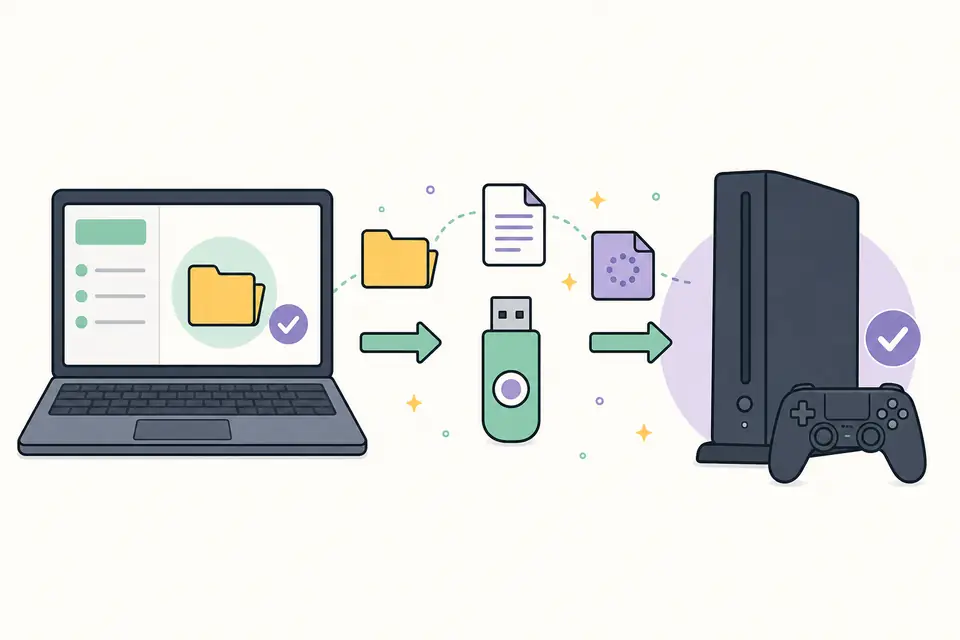
Many vendors document a USB workflow, but the folder names, filesystem and filename are product-specific. Sony's PS4 instructions, for example, use a FAT32 or exFAT drive, a `PS4/UPDATE/` folder and the exact filename `PS4UPDATE.PUP` when the console cannot complete a normal download. Another device may require a root-level image, a vendor utility or no USB at all. Copy the instructions exactly and keep the verified file name unchanged.
Choose the least destructive path that matches the symptom. A normal update is for a working installation. Recovery is for a documented boot or update failure. Reinstallation rebuilds the system and may erase local data. Connect stable power, remove unrelated files from the media and let the device finish its checks. Do not interrupt a progress screen or try a package for a similar model.
| Path | Use it when | Risk to confirm |
|---|---|---|
| Normal update | The device starts and the vendor offers an in-system or standard USB update | Keep power connected and back up important data. |
| Recovery image | The official guide names recovery for a failed boot or interrupted update | Confirm the exact model and whether settings will be reset. |
| Reinstallation | The vendor requires a full system rebuild | Assume local data can be erased unless the vendor says otherwise. |
What to do when a firmware update fails
An error is evidence, not an invitation to download several random files. Record the full message, code, device version and step where it appeared. Check power, free storage, cable, media format, folder capitalization and available network space first. A partial download, a charge-only USB cable or a filename with an extra extension can look like a firmware defect when the package itself is correct.
If the hash does not match, download again from the vendor and compare the result. If the file is valid but the device rejects it, revisit model, region, hardware revision, bootloader or installed-version rules. Use the model-specific support page or contact the manufacturer before trying a downgrade. Do not bypass a signature check, rename a package to force acceptance or install custom firmware when the page only documents an official update.
- Stop flashing when the source, model or verification result is unclear.
- Retry a failed download only after checking the official source and network path.
- Use the exact error code to find a vendor troubleshooting page or support case.
- Treat recovery and reinstallation as separate procedures with their own data-loss warnings.
Keep a firmware download record and know when to stop
A small record makes future updates safer. Save the source URL, model string, revision or region, version, release date, file size, checksum, signature result and the date you checked it. Note whether the file came from a vendor portal, an open-source release or a verified archive. This prevents a later search from mixing two close-looking packages and gives support staff the details they need.
This guide does not host copyrighted console firmware, keys or mystery archives. It explains how to reach the correct source and check a file before installation. When a vendor provides no checksum, signature or model-specific instructions, use its official support workflow instead of guessing.
- Write down the installed version again after the device restarts.
- Keep the vendor release notes with the checksum and installation instructions.
- Link readers to a model page when the remaining question is compatibility, not discovery.
- Use a guide for USB preparation or error handling instead of duplicating a download listing.
How to Download Firmware Safely: Verify Sources, Models and Checksums FAQ
Where should I download firmware?
To learn how to download firmware safely, start with the manufacturer's official support or release page for the exact model. Use a mirror only when the vendor no longer hosts the file and an independent checksum or signature can verify it.
How do I know a firmware download is safe?
Confirm the source, model, region and update type, then compare a published SHA-256 or SHA-512 checksum and verify a signature when the vendor provides one. Do not flash a file that fails either check.
Can I use firmware from a similar model?
Usually no. Similar names can hide different hardware revisions, chipsets, panels or regional builds. Use a package only when the manufacturer explicitly lists your exact model as compatible.
What is the difference between update, recovery and reinstallation firmware?
A normal update changes a working installation. Recovery is a documented repair path for a failed boot or update. Reinstallation rebuilds the system and may erase local data, so read the vendor warning first.
What should I do if the checksum does not match?
Do not install the file. Delete it, return to the first-party source, download it again and compare the complete digest. If it still differs, contact the vendor or stop using that source.
Do I need a USB drive for every firmware update?
No. Many devices update through their settings or a vendor utility. Use USB only when the official instructions require it, and follow the exact filesystem, folder and filename rules for that model.
Does this site provide console firmware or keys?
No. The guide explains how to reach documented sources and verify files. It does not mirror copyrighted console firmware, prod keys, title keys or bundled custom-firmware tools.
Official verification references
These references illustrate the checks described above. The device manufacturer's current support page remains the authority for your model.
- OpenWrt: Verifying firmware binary Explains signed checksum lists, SHA-256 verification and why a failed signature or hash should stop an installation.
- PlayStation: PS4 system software Shows the official online and USB update paths, including the model-specific folder and PS4UPDATE.PUP filename.